
Dynamic QR Platform
Create QR codes Instantly
Website URL
Send users to any webpage
Website URL
Website URL
Send users to any webpage
Wi-Fi
Let users connect instantly
Wi-Fi
Wi-Fi
Let users connect instantly
Menu
Create a digital menu
Menu
Menu
Create a digital menu
Start a chat with one tap
Start a chat with one tap
Image
Showcase visuals
Image
Image
Showcase visuals
Show a downloadable file
Show a downloadable file
15 Aug 2026 • 10 min read
QR Codes for Google Reviews: How to Get More Customer Reviews from In-Store Signage
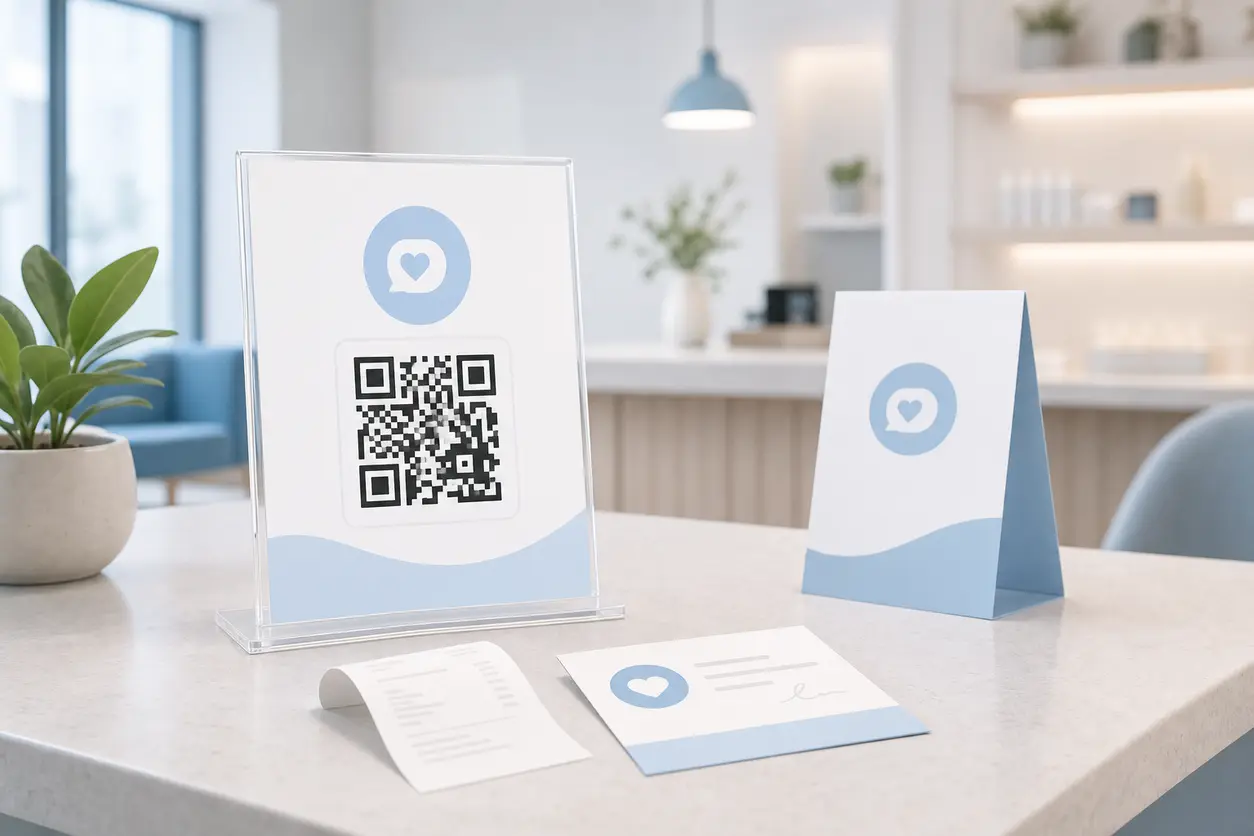
A practical playbook for local businesses that want to use in-store signs, receipts, thank-you cards, and table tents to send customers straight to their Google review page with a single scan. Learn where to place a Google Review QR code, when to ask, what CTA copy works best, how to reduce scan friction, and how to track which placements drive review intent.
IntroductionWhy a Google Review QR code works so well in-storeWhat a good review-signage setup should actually doStatic vs. dynamic QR codes for review signageHow to set up a Google Review QR code workflowWhen to ask for the reviewCTA copy that works without sounding pushyPlacement ideas that fit real customer behaviorHow to reduce friction and increase scan rateHow to track performance by placementExample setups by business typeMistakes to avoidBuild a reusable review system, not a one-off signFAQ
A customer leaves your salon, dental office, clinic, auto shop, or front desk feeling ready to move on with the day. If the review request depends on staff remembering to text a link, or on the customer searching your business name later, most of that intent disappears.
A Google Review QR code fixes that gap. One scan can send the customer directly to your Google review page right after a purchase, appointment, or service visit.
That matters because review volume and recency still shape how people evaluate nearby businesses. When your profile shows a steady flow of recent feedback, it supports trust, click-through, and repeat local discovery when future customers compare options.
This guide focuses on the in-store signage workflow specifically: where to place a Google Review QR code, when to ask, what copy to use, how to reduce friction, and how to measure which printed placements actually get scanned.
Why a Google Review QR code works so well in-store
Most review requests fail because they add one extra step too many.
A customer who has to:
- remember your business name exactly
- open Google later
- find the right listing
- tap into the review flow
is much less likely to leave feedback than someone who scans a code while they are still at the counter.
A Google Review QR code shortens the path from real-world service to online proof. That makes it especially useful for businesses with high-frequency visits or repeated appointments, including:
- salons and barbershops
- dentists and orthodontists
- med spas and clinics
- auto repair shops
- home and field service businesses
- restaurants and cafes
- retail stores with strong local foot traffic
It is also operationally simple. Once your signage is in place, staff do not need to manually send links all day.
What a good review-signage setup should actually do
A useful review setup is not just "print one QR code and hope for the best."
It should do five things well:
- Send people straight to your Google review destination.
- Fit naturally into the end of the customer journey.
- Use neutral, trustworthy copy that asks for an honest review.
- Be easy to test, reuse, and reprint across multiple touchpoints.
- Help you see which placements get scans.
That last part is where many businesses miss an easy win. If you use the same QR code on every sign, card, and receipt, you will not know whether your counter sign works better than your thank-you card or whether one location outperforms another.
Static vs. dynamic QR codes for review signage
A static QR code can work if you only need a single sign and do not expect anything to change.
But for most local businesses, a dynamic QR code is the better fit because printed review assets tend to multiply fast. You might start with one front-desk sign, then add receipts, table tents, service folders, or take-home cards.
A dynamic setup is useful when you want to:
- update the destination later without reprinting everything
- create separate QR codes for each placement
- keep signage reusable across campaigns or locations
- manage multiple review assets from one dashboard
With QR Rapid, you can build separate QR codes for each review touchpoint so you can manage them more cleanly and compare scan activity by placement. That is far more practical than using one generic code everywhere.
How to set up a Google Review QR code workflow
Keep the setup simple and repeatable.
1. Get your direct Google review link
Start with the direct link to the review form for your Google Business Profile. The goal is to remove as many taps as possible between the scan and the review action.
If you manage multiple locations, pull the correct review link for each location rather than reusing one main brand link.
2. Decide which physical placements need their own code
Do not think in terms of "one business, one code." Think in terms of touchpoints.
For example, a dental office might create separate QR codes for:
- front-desk checkout sign
- printed aftercare folder
- appointment thank-you card
- emailed PDF invoice insert
An auto shop might separate:
- pickup counter sign
- printed invoice
- key envelope insert
Separate codes give you cleaner tracking and better control.
3. Create the code in QR Rapid
In QR Rapid, create a QR code for each placement and name it clearly. A naming system like this works well:
- Downtown-FrontDesk-Reviews
- Downtown-Receipt-Reviews
- Westside-TableTent-Reviews
- MainClinic-ThankYouCard-Reviews
This keeps reporting usable later.
4. Customize for readability, not decoration
A branded code can help signage feel more trustworthy, but scan speed matters more than visual flair.
Use:
- strong contrast
- enough white space around the code
- a clear call to action
- a print size that is easy to scan from the expected distance
Avoid overly styled designs, busy backgrounds, or tiny codes squeezed into the corner of a receipt.
5. Test the full scan path
Before printing in bulk, test on multiple phones.
Check that the code:
- scans quickly
- opens the right Google review destination
- works on both iPhone and Android
- is readable under normal in-store lighting
- remains easy to scan when printed at final size
6. Print with a fallback option
Add a short URL below the code whenever possible. Some customers prefer typing a short link instead of scanning, and a fallback helps if a receipt prints poorly or a sign gets scratched.
When to ask for the review
Timing is a bigger factor than design.
The best moment is usually right after the business outcome has been delivered and while the customer is still physically present.
That can mean:
- after checkout at a salon
- after a cleaned-teeth recap at a dental office
- after payment at a clinic front desk
- when a server drops the check
- when an auto shop returns keys and explains completed work
The key is to ask while the experience is still fresh, not days later when attention is gone.
Just as important: ask in a neutral way. Do not ask only customers who seem happy, and do not route dissatisfied customers away from the public review option. If you also collect private feedback, keep that as a separate and clearly optional channel rather than a filter.
A safe principle is simple: invite all customers to leave an honest review.
CTA copy that works without sounding pushy
Good review signage copy should be short, specific, and neutral.
Here are safer CTA examples for a Google Review QR code:
- Scan to leave a Google review
- Share your experience on Google
- Tell others about your visit
- Scan to review your appointment
- Leave an honest review on Google
- Review our service in one quick scan
Avoid copy that implies you only want positive feedback, such as asking only if someone "loved" the visit or only if you "took good care" of them.
Placement ideas that fit real customer behavior
The best review signage feels like part of the workflow, not an afterthought.
Counter signs
Counter signs are often the highest-intent placement because they appear at the moment of payment, scheduling, or checkout.
Best use cases:
- salon front desk
- dental checkout counter
- clinic reception desk
- auto shop pickup counter
- retail register area
What to include:
- one QR code
- one short CTA
- optional short URL
- minimal supporting text
Keep the sign upright, uncluttered, and visible from where the customer naturally pauses.
Receipts
Receipts are useful because they travel with the customer, but they are weaker than face-up signage if the code is tiny or buried among transaction details.
Best practices for receipts:
- place the code near the bottom with breathing room
- add a plain CTA like "Scan to leave a Google review"
- make sure thermal printing keeps the code readable
- include a short backup URL if space allows
A receipt QR code works best as a second chance touchpoint, not your only one.
Thank-you cards
Thank-you cards work especially well for service businesses where customers leave with paperwork, product samples, aftercare instructions, or branded packaging.
Examples:
- salon rebooking card
- dental aftercare handout
- med spa take-home packet
- contractor leave-behind card
- boutique purchase insert
Because these cards have more space than receipts, you can make the Google Review QR code larger and easier to scan.
Table tents
Table tents are a natural fit for restaurants, cafes, tasting rooms, waiting areas, and consultation desks.
They work best when the customer has a few idle minutes, such as waiting for the check, sitting in a lobby, or reviewing service information.
Keep table tent copy tight. Too much text turns a simple scan request into something people ignore.
How to reduce friction and increase scan rate
If you want more reviews, your job is not to "convince" customers. It is to remove friction.
Here are the biggest wins:
Keep the path direct
A Google Review QR code should get customers to the review action fast. Extra landing pages, long explanations, or multiple buttons usually lower completion.
Use one action per sign
Do not combine reviews, loyalty, coupons, menus, and bookings on the same printed asset unless the sign has a very specific reason to do so. A review sign should ask for one thing.
Make the code easy to scan
Use enough size, contrast, and white space. If the customer has to tilt the receipt under bright light or zoom in on a tiny card, you are creating avoidable drop-off.
Add context in plain language
People scan more often when they know what happens next. "Scan to leave a Google review" works better than showing a code with no explanation.
Give staff one easy script
Staff do not need a long pitch. A short, neutral line is enough:
"If you would like to leave us a review, you can scan this code here."
That keeps the ask consistent and low-pressure.
How to track performance by placement
Tracking is where a signage playbook becomes a real system.
The practical way to do it is to create a different QR code for each placement, location, or campaign rather than reusing one code everywhere.
For example:
- front desk vs. receipt
- table tent vs. thank-you card
- downtown location vs. north location
- standard sign vs. redesigned sign
In QR Rapid, that lets you manage review assets individually and compare scan activity across placements. Over time, you can answer useful questions like:
- Do checkout signs outperform receipts?
- Does a larger thank-you card get more scans than a small insert?
- Which location needs better placement or clearer copy?
One important note: scan tracking is not the same as review attribution. Google does not typically tell you exactly which printed QR code produced which individual review. What you can measure reliably is scan activity and relative intent by placement. That is still very useful for optimizing your signage.
Example setups by business type
Salon
Use a small acrylic counter sign at checkout and a second Google Review QR code on a printed thank-you card placed in the bag with retail products.
Dental office or clinic
Place one sign at checkout and another on the printed visit summary or aftercare folder. Patients often scan more readily once paperwork is in hand and payment is complete.
Auto shop
Put one code at the pickup counter and another on the invoice or key envelope. The service recap moment is often the best time to ask because the job outcome is fresh.
Mistakes to avoid
Even a strong concept can underperform if execution is sloppy.
Avoid these common issues:
- using the same code on every asset and losing track of performance
- placing the code where customers do not naturally pause
- printing the code too small on receipts or cards
- cluttering the sign with too many offers or messages
- asking only obviously happy customers
- sending unhappy customers to a separate path instead of allowing equal access to the public review option
- skipping phone testing before printing a batch
Build a reusable review system, not a one-off sign
The best Google Review QR code strategy is not about one clever sign at the register. It is about turning each completed visit into a consistent, low-friction review opportunity.
For most local businesses, that means:
- one direct review destination
- separate QR codes for each placement
- neutral CTA copy
- fast scan experience
- simple tracking by location and format
If you want a cleaner way to create and manage those review assets, QR Rapid gives you a practical starting point. You can create a QR code for each touchpoint, keep your signage organized, customize the design for print, and manage updates without rebuilding the whole system.
The result is simple: less staff friction, better visibility into what gets scanned, and a more reliable way to turn in-store visits into public reviews that support local trust and discovery.
FAQ
How do I create a Google Review QR code for my business?
Start with your direct Google review link, then create a QR code that points to that destination. For better management, create separate codes for each placement such as counter signs, receipts, and thank-you cards.
Should I use the same Google Review QR code on every sign?
Usually no. If you want to track which placements work best, create a different QR code for each touchpoint or location. That makes it easier to compare front-desk signs, receipts, and cards.
What should a Google Review QR code sign say?
Use short, neutral copy such as "Scan to leave a Google review" or "Share your experience on Google." Avoid wording that asks only for positive reviews.
Can I send customers to a landing page before the Google review page?
You can, but keep the path short. If you use a landing page, do not use it to filter customers or steer dissatisfied people away from Google. The public review option should remain equally accessible.
Where should I place a Google Review QR code in-store?
Best placements include checkout counters, reception desks, receipts, thank-you cards, table tents, visit-summary folders, and pickup areas. Put the code where customers naturally pause right after the service is complete.
Can I track reviews from a Google Review QR code?
You can track QR scans by placement if you use separate codes, but Google usually does not attribute individual reviews to specific QR scans. Scan data is still useful for comparing which printed assets drive the most review intent.
Similar Blogs
The latest industry news, interviews, technologies, and resources.
 September 14, 2026
QR Codes for Loyalty Program Sign-Ups: A Measurable Offline-to-Member Workflow
QR Codes for Loyalty Program Sign-Ups: A Measurable Offline-to-Member Workflow
Read post
 September 14, 2026
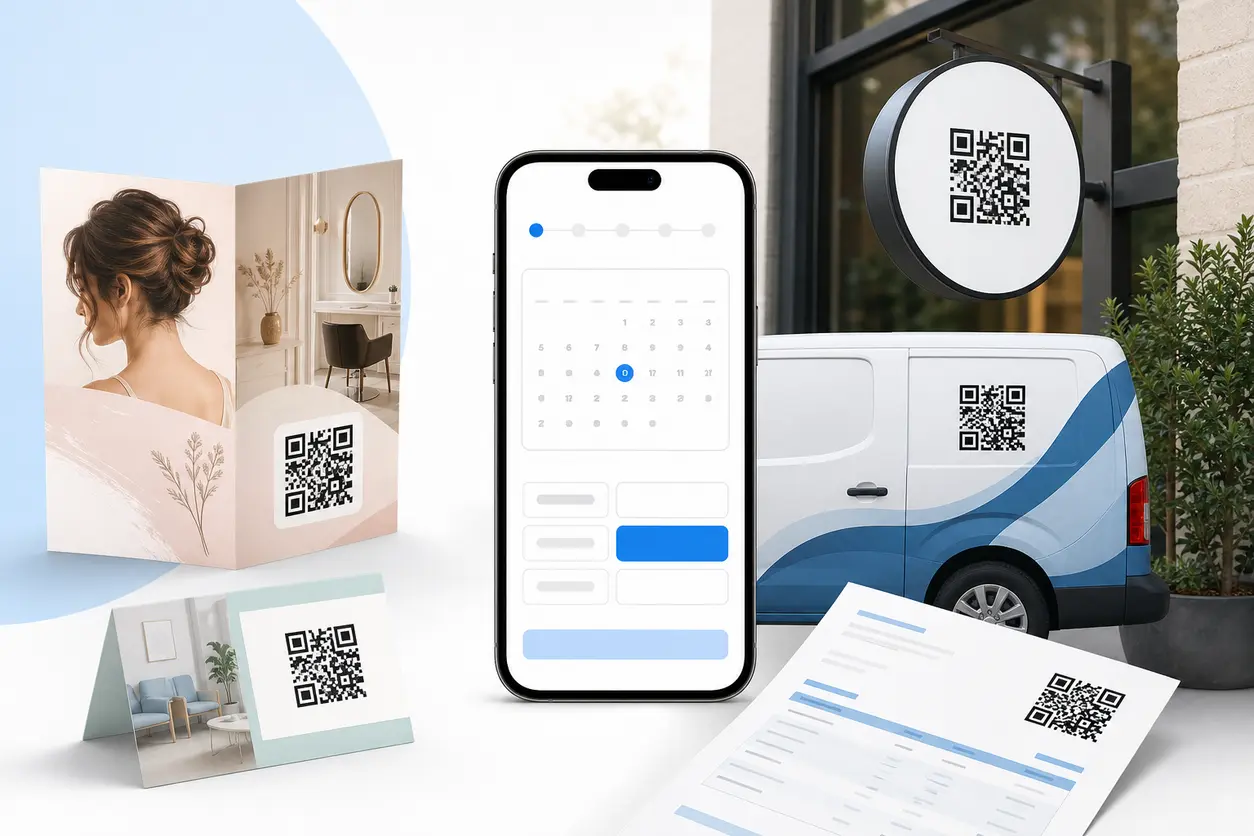
Appointment Booking QR Code Workflows for Service Businesses
Appointment Booking QR Code Workflows for Service Businesses
Read post
Join 2,000+ subscribers
Stay in the loop with everything you need to know.
We care about your data in our privacy policy