Add QR Rapid to Claude or ChatGPT once, sign in, and manage your QR codes by asking. Step through the whole journey below.
Works with every QR Rapid account. Downloads and new codes need an active plan or the 7-day trial, like the dashboard.
Stage 1 of 6
Your AI assistant
Claude
Works with
Claude · as a connector
ChatGPT · as a custom MCP server
Claude Code · one command
The connection
QR Rapid
Your QR Rapid workspace
QR Rapid Demo
1. Choose your assistant
Use the AI assistant you already have: Claude, ChatGPT or Claude Code. Nothing to install on the QR Rapid side.
Claude is a trademark of Anthropic, PBC. ChatGPT and the OpenAI logo are trademarks of OpenAI. QR Rapid is not affiliated with or endorsed by either; the connection uses the open Model Context Protocol.
Pick your assistant for its own steps, screen by screen. Every route needs the same three things.
Server address
https://qrrapid.com/api/mcpYour assistant sees exactly these five tools and nothing else. Four only read; the fifth creates a code, and only after you have confirmed its preview.
You say: “Show my last five QR codes.”
Newest first, filtered by name, type, static or dynamic, and status. Only the connected workspace.
list_qr_codes
Permission: See your QR codes, their details and download their images
You say: “What does the “Spring menu” code open?”
One code by id or name, with its type-specific details. A Wi-Fi password or an uploaded file is never returned.
get_qr_code
Permission: See your QR codes, their details and download their images
You say: “Give me the PNG of “Spring menu”.”
The saved design rendered as a PNG preview, plus a PNG or SVG download link that works for 10 minutes.
get_qr_code_image
Permission: See your QR codes, their details and download their images
You say: “Draft a dynamic QR code for example.com called “Autumn flyer”.”
Validates the details with the product’s own form rules and checks your role, plan and limits. Creates nothing; returns a confirmation id.
preview_qr_code
Permission: Create new QR codes (you review each one before it is created)
You say: “Yes, create it.”
Creates exactly the previewed code, once. A retry with the same confirmation returns the code already created instead of a duplicate.
create_qr_code
Permission: Create new QR codes (you review each one before it is created)
Static or dynamic, as in the dashboard. vCard is always dynamic and Wi-Fi is always static.
Menu, PDF, Image, MP3, Video, List of links, Coupon, Event, App, Crypto and Social media need uploads or a page editor. For these, the assistant hands you a link to the right dashboard form and creates nothing.
The second list is not a setting you could change: those actions do not exist in the connection at all.
Whatever the assistant, the QR Rapid part is the same: your normal sign-in, one workspace, and a consent page that names the assistant when its identity can be verified.
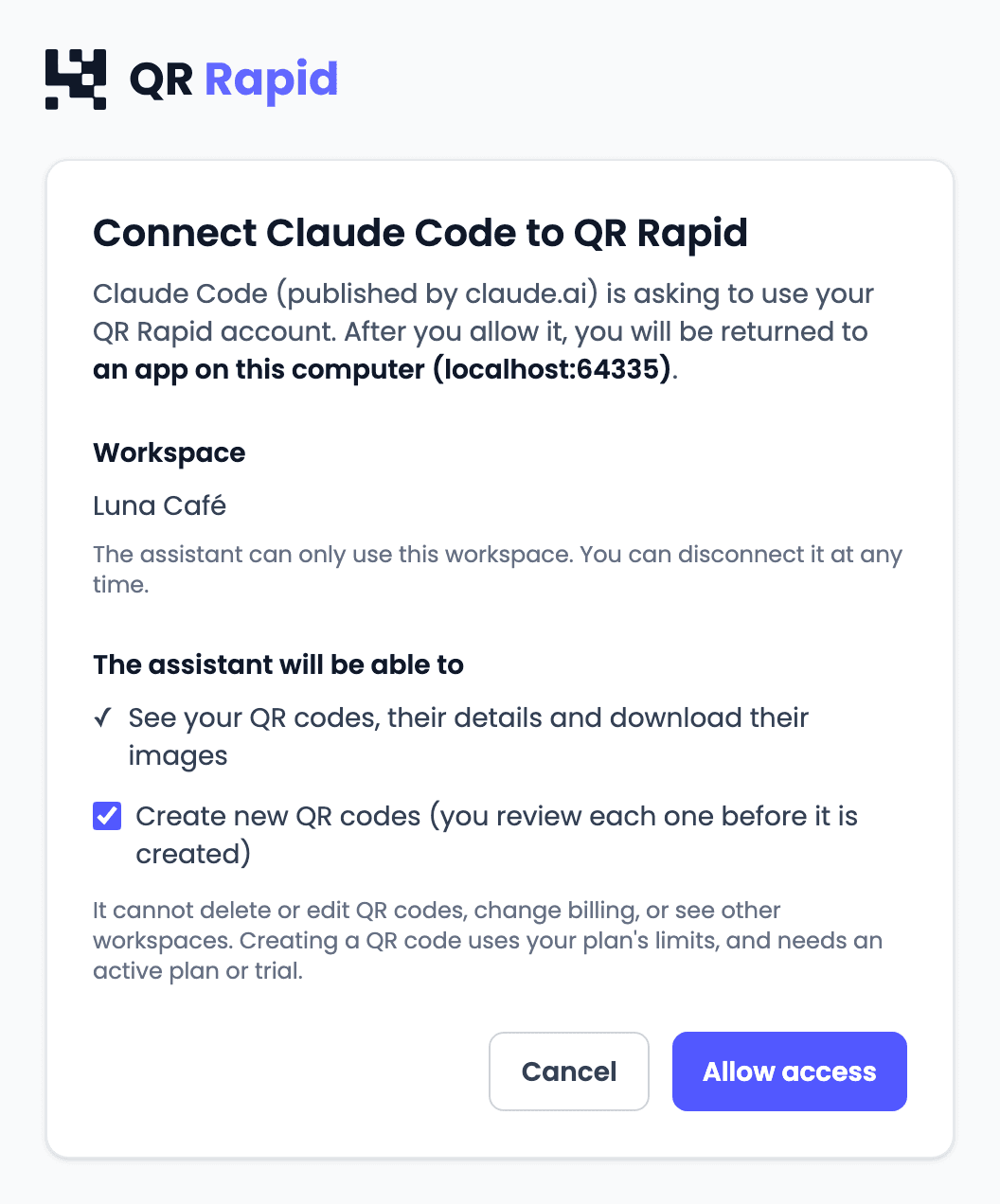
One account, one workspace, one assistant. Your membership and role are checked on every call, and disconnecting takes one click.
A connection is one account, one workspace and one assistant. No tool accepts a workspace, user or role, and another workspace’s code ids are treated as missing.
Creation is a preview followed by your confirmation. The confirmation pins the exact content, belongs to that connection and expires after 15 minutes.
Each request re-reads your membership and role. Leaving the workspace, losing the Owner or Admin role, or an expired plan changes what the assistant can do at once.
Account → Personal info → Connected AI assistants lists every connection. Disconnecting one ends its access immediately, whatever the assistant still shows.

Can’t find your answer? Contact us
MCP, the Model Context Protocol, is an open standard that lets an AI assistant use an outside service through a fixed set of tools. QR Rapid runs an MCP server at qrrapid.com/api/mcp. Once you connect an assistant to it and sign in, the assistant can list your QR codes, read their details, download their images and, after you confirm each one, create new codes in the workspace you chose.
Every QR Rapid account. Connecting needs only your normal sign-in and a workspace you belong to. Listing and reading details work on any plan; downloading images and creating codes need an active plan or the 7-day trial, and creating needs the Owner or Admin role in that workspace, exactly like the dashboard.
Claude (as a custom connector), Claude Code (from the terminal) and ChatGPT (as a custom MCP server) have set-up guides here, each describing what QR Rapid has tested with that client. Other assistants that support remote MCP servers with sign-in may work too, but they are not listed until they have been checked end to end.
Partly. The list and details tools return the scan count QR Rapid stores for each code, so an assistant can tell you which codes are scanned most. There is no analytics tool: trends, countries, devices and time ranges stay in Rapid Insights on the Statistics page of your dashboard, where every figure is calculated by QR Rapid.
No. The five tools list, read, download, preview and create. There is no edit, pause, delete, move or bulk tool, and the server never returns a Wi-Fi password or an uploaded file.
No. Connecting opens your normal QR Rapid sign-in on qrrapid.com, in your browser. The assistant receives a short-lived token for one workspace, limited to what you allowed on the consent page, and can be disconnected at any time from Account → Personal info → Connected AI assistants.
Yes. Creation goes through the same checks as the dashboard: an active plan or trial, the Owner or Admin role, and your plan’s static and dynamic limits. At the limit, the assistant gets the same message the dashboard shows.
Open Account → Personal info → Connected AI assistants in your dashboard and select Disconnect. Access ends immediately. Removing the connector in the assistant alone may leave the connection listed in QR Rapid, so disconnect in QR Rapid too.
Sign in or create your QR Rapid account, add the QR Rapid address to Claude or ChatGPT, and ask for your first QR code.
Works with every QR Rapid account. Downloads and new codes need an active plan or the 7-day trial, like the dashboard.