QR Rapid
QR Codes for
  • Restaurants
  • Gym and Wellness
  • Event Management
  • Business Services
  • Work Environment
  • Social Media
  • Design
  • Life Hack
Explore all use cases→
QR Codes on
  • Product packaging
  • Flyers and posters
  • Storefronts and window signs
  • Brochures and catalogs
  • Event tickets and badges
Where to use QR codes→
QR Types
  • Website URL
  • Wi-Fi
  • Menu
  • WhatsApp
  • Image
  • PDF
  • MP3
  • Video
  • Email
  • Text
  • vCard
  • Crypto
  • List of links
  • Coupon
  • SMS
  • Event
  • APP
  • Social media
View all QR types→
AINew

Rapid, inside your dashboard

  • Create with Rapid
  • Rapid Insights

Connect your AI assistant

  • MCP server
  • Claude
  • ChatGPT
View all AI→
  • Blogs
  • FAQ
  • Chrome Extension
  • QR Size Calculator
QR Rapid

Create, customize, manage, and track QR codes for business, marketing, events, and everyday use.

QR Types

Website URL

Wi-Fi

Menu

WhatsApp

Image

PDF

MP3

Video

Email

QR Codes for

Restaurants

Gym and Wellness

Event Management

Business Services

Social Media

Work Environment

Design

Life Hack

Where to Use QR Codes

Company

Rapid AI

Chrome Extension

Plans & Pricing

Blogs

About Us

Legal

Terms and Conditions

Privacy Policy

Cookies Policy

Help

FAQ

QR Size Calculator

Contact Us

2026 © QR Rapid All rights reserved - QR Code is a trademark of DENSO WAVE INCORPORATED

MP3 QR code · audioLet people hear it where they’re standing.

Upload a recording and print the code on an exhibition label, a guide card or a product tag. A scan opens a player with your cover art in the phone’s browser: no app, no account.

Create an audio QR codeWhere it’s used

MP3, M4A, AAC, WAV or FLAC · one file up to 30 MB

Stop 4

The east gallery

Linden Hall Museum · oil on linen, 1931

Scan to listen
3 min · English
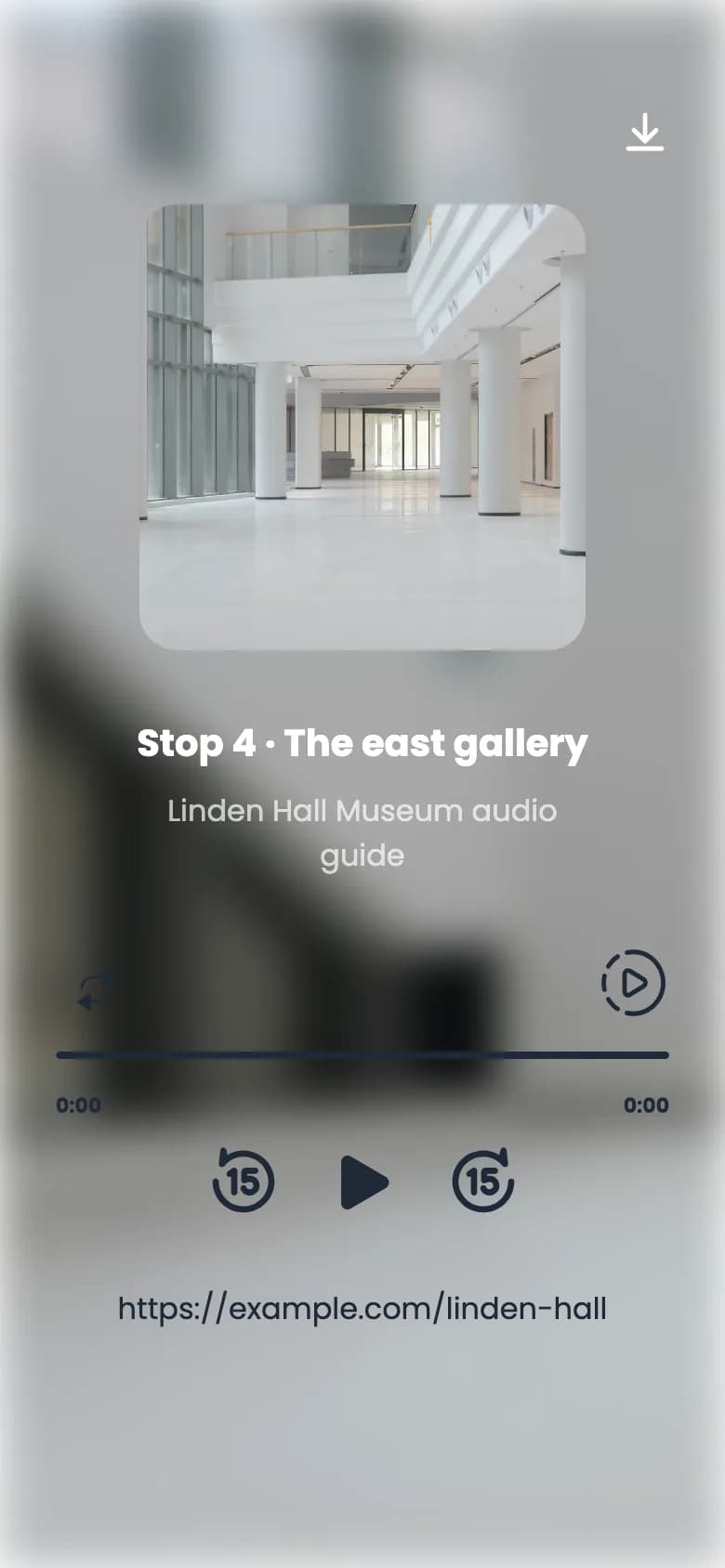
QR Rapid audio player on a phone: a gallery photo as cover art, the title “Stop 4 · The east gallery”, “Linden Hall Museum audio guide”, repeat and speed buttons, a progress bar, and skip back 15, play and skip forward 15 controls.

Sample museum. The phone shows QR Rapid’s audio player; the label’s code opens this page.

Six places a recording belongs

Audio works where people’s eyes are busy: on an exhibit, a view, a product or a page. The code goes on the thing itself; the recording stays in your dashboard.

  1. 01

    1. Museum and exhibition audio guides

    One code per object or room. A curator re-records a stop when a loan changes, and the label on the wall stays as it is.

    Where the code goes: On the object label, next to the stop number

  2. 02

    2. Walking and heritage tours

    Visitors hear the story where it happened, at their own pace, and can download the track for patchy signal.

    Where the code goes: On plaques, gates and trail posts

  3. 03

    3. Product narration

    The maker explains the piece: the material, how it was made, how to care for it. A minute in their own voice.

    Where the code goes: On a hang tag or inside the lid

  4. 04

    4. Language learning

    Pronunciation, dialogues and listening exercises. Learners slow the speed to 0.75× or 0.5× and replay a phrase.

    Where the code goes: Beside the text on a worksheet or flashcard

  5. 05

    5. Instructions and accessibility

    Spoken instructions for people who can’t read small print, or the language, and for anyone whose hands are busy.

    Where the code goes: On appliances, kiosks, packaging and room panels

  6. 06

    6. Hospitality visitor information

    A welcome, house rules and breakfast times, recorded by the host. Re-record it for the season without reprinting.

    Where the code goes: On the room card or the lobby board

Made by hand

Walnut serving board

Hear how it was made and how to look after it.

Scan to listen
1 min
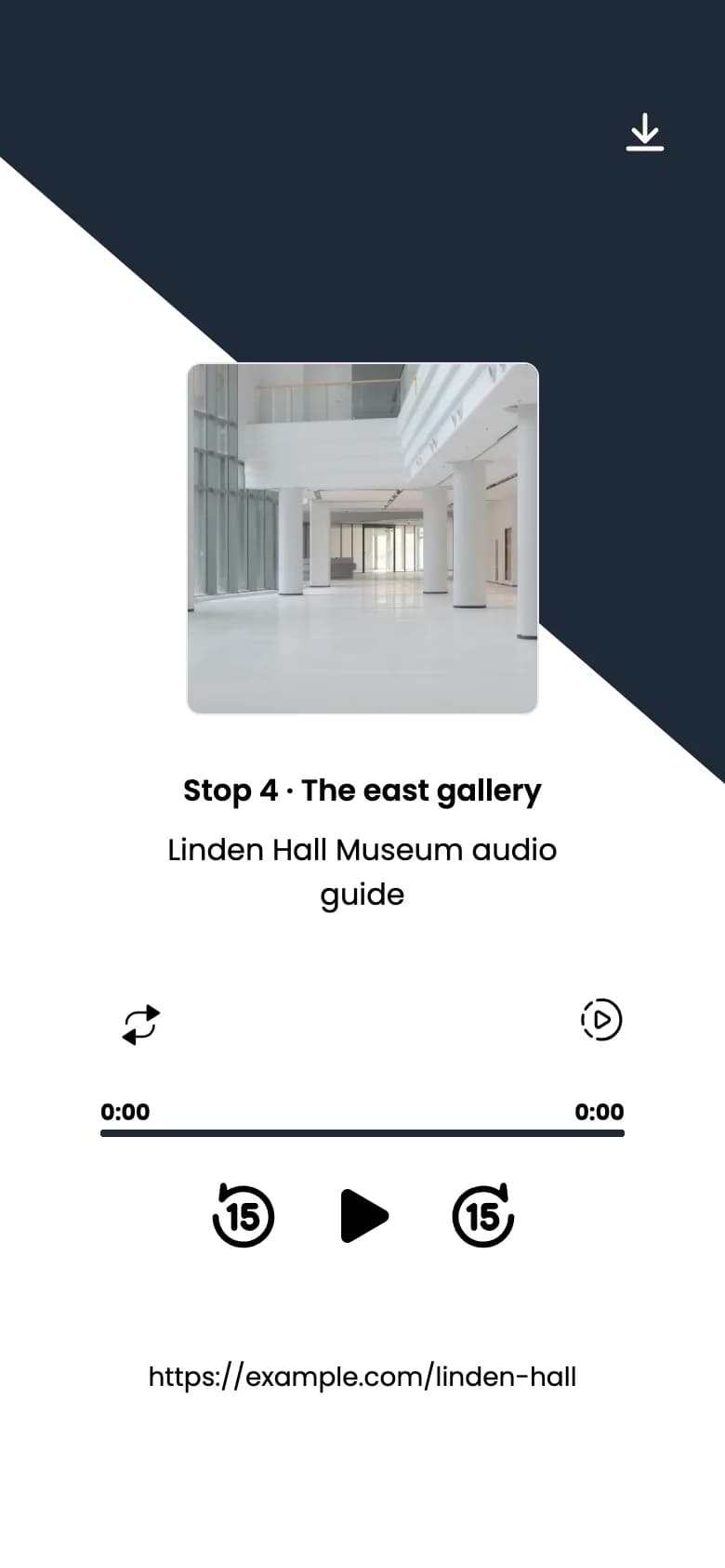
QR Rapid audio player, template 3: a diagonal navy and white background, the cover photo, the title “Stop 4 · The east gallery”, repeat and speed buttons, a progress bar and the play controls.
Sample tag and recording. The phone shows the third of four player templates.

What a scan opens

A player built for listening on your feet. It opens in the phone’s browser, and the controls are the ones people reach for while walking round a room.

Play and pause
A large central button.
Back 15 s, forward 15 s
For “what did she just say?”
Playback speed
Seven steps from 0.25× to 2×.
Repeat
Loops the track when it ends.
Download
Saves the file in the format you uploaded.
Cover art
Your image, up to 25 MB.
Title and description
100 characters each.
Website link
Up to 200 characters, under the player.

Create it in a few minutes, change it whenever you like

  1. 1

    Step 1: Upload the recording

    MP3, M4A, AAC, WAV or FLAC, one file up to 30 MB. Drag it in or pick it from the phone; the player preview appears as soon as it has uploaded.

  2. 2

    Step 2: Add a title, a description and a website

    Up to 100 characters each for the title and description. The website link sits under the player: a transcript, a shop, the full show.

  3. 3

    Step 3: Add cover art

    Any image up to 25 MB. You crop it in the editor: square for three of the templates, portrait for the second.

  4. 4

    Step 4: Pick a player template and two colours

    Four layouts, each with a primary and a secondary colour you can swap with one click. The preview updates as you type.

  5. 5

    Step 5: Design and download the code

    Choose the dot and corner styles, colours, a frame with “Scan to listen” and your logo, then download it as SVG, PNG, JPEG or PDF.

Good to know

Files and limits

  • Formats: MP3, M4A, AAC, WAV or FLAC. One file per code, up to 30 MB.
  • Size, not length, is the limit: a 30 MB MP3 holds about 30 minutes at 128 kbps, a WAV at CD quality only about 3 minutes. For speech, a 64–96 kbps MP3 or M4A sounds clean and stays small.
  • OGG, WMA and AIFF aren’t accepted. Export them as MP3 or M4A from any audio editor first.
  • Listeners can download the file. Don’t publish a recording that shouldn’t leave the room.
  • Offer the same content as text: link a transcript through the website field or print it beside the exhibit.

For a full transcript or a printed guide to every stop, see the PDF QR code.

The label stays on the wall when the recording changes

The code points to a short QR Rapid link rather than to the audio itself. Upload a better take, fix a date in the script or change the cover, and every printed label plays the new version.

Give each stop its own code and your dashboard shows total scans, estimated unique visitors, countries, cities, operating systems and scan activity over time for every one. It counts scans, not listening time. Planning an exhibition or a festival trail? See QR codes for event management.

Create an audio QR code

7-day free trial, no credit card required.

MP3 QR code questions

About files, players and printed labels.

Which audio formats can I upload?

MP3, M4A, AAC, WAV and FLAC, one file up to 30 MB. They play in the phone’s browser as uploaded, without conversion. OGG, WMA and AIFF files are not accepted: export them as MP3 or M4A first.

How long can the audio be?

The limit is file size, not length. A 30 MB MP3 holds roughly 30 minutes at 128 kbps and about an hour of speech at 64 kbps; a 96 kbps M4A holds around 40 minutes. A WAV at CD quality fits only about 3 minutes, so compress long recordings before uploading.

Do listeners need an app?

No. The scan opens a QR Rapid page in the phone’s browser with your cover art and a player. They can play, skip back or forward 15 seconds, change the speed from 0.25× to 2×, repeat the track and download the file.

Can I put several tracks on one code?

No, each MP3 QR code plays one file. For an audio tour, create one code per stop, which also lets you see which stops are scanned most.

Can listeners download my audio?

Yes. The player has a download button that saves the file in the format you uploaded. If the recording shouldn’t be shared as a file, don’t publish it behind a QR code.

Can I change the audio after printing the label?

Yes. Upload a new recording, cover or title from your dashboard and the printed code keeps working, because it points to a short QR Rapid link rather than to the file itself.

How do I make an audio guide accessible?

Offer the same content as text. The player’s description holds 100 characters, so link a transcript page through the website field or print the text beside the exhibit.

Not quite the right fit?

Compare all 18 QR code types
  • Video QR codeWhen the guide needs pictures as well as sound.
  • PDF QR codePublish the transcript or a printable guide to every stop.
  • List of links QR codePoint one code at several tracks or a full playlist elsewhere.