
Dynamic QR Platform
Create QR codes Instantly
Website URL
Send users to any webpage
Website URL
Website URL
Send users to any webpage
Wi-Fi
Let users connect instantly
Wi-Fi
Wi-Fi
Let users connect instantly
Menu
Create a digital menu
Menu
Menu
Create a digital menu
Start a chat with one tap
Start a chat with one tap
Image
Showcase visuals
Image
Image
Showcase visuals
Show a downloadable file
Show a downloadable file
08 Nov 2026 • 7 min read
WhatsApp QR Code With a Pre-Filled Message: Customer Inquiry Examples
Create a WhatsApp QR code with useful prefilled inquiry text. Follow the click-to-chat link format, adapt templates for five customer entry points, check QR Rapid's creation fields, and test the scan-to-send journey.
IntroductionWhat happens after someone scans?Build the prefilled message link correctlyFive prefilled message templates for customer inquiriesCreate the QR code in QR Rapid: check fields firstTest the draft, not just whether the code scansUse a distinct code per placement when comparison is availableKeep privacy and permission practicalCreate your first prefilled inquiry codeFAQ
Start with the message, build and test the click-to-chat link, then create the code in QR Rapid. The important distinction is simple: opening a draft is not the same as sending an inquiry.
What happens after someone scans?
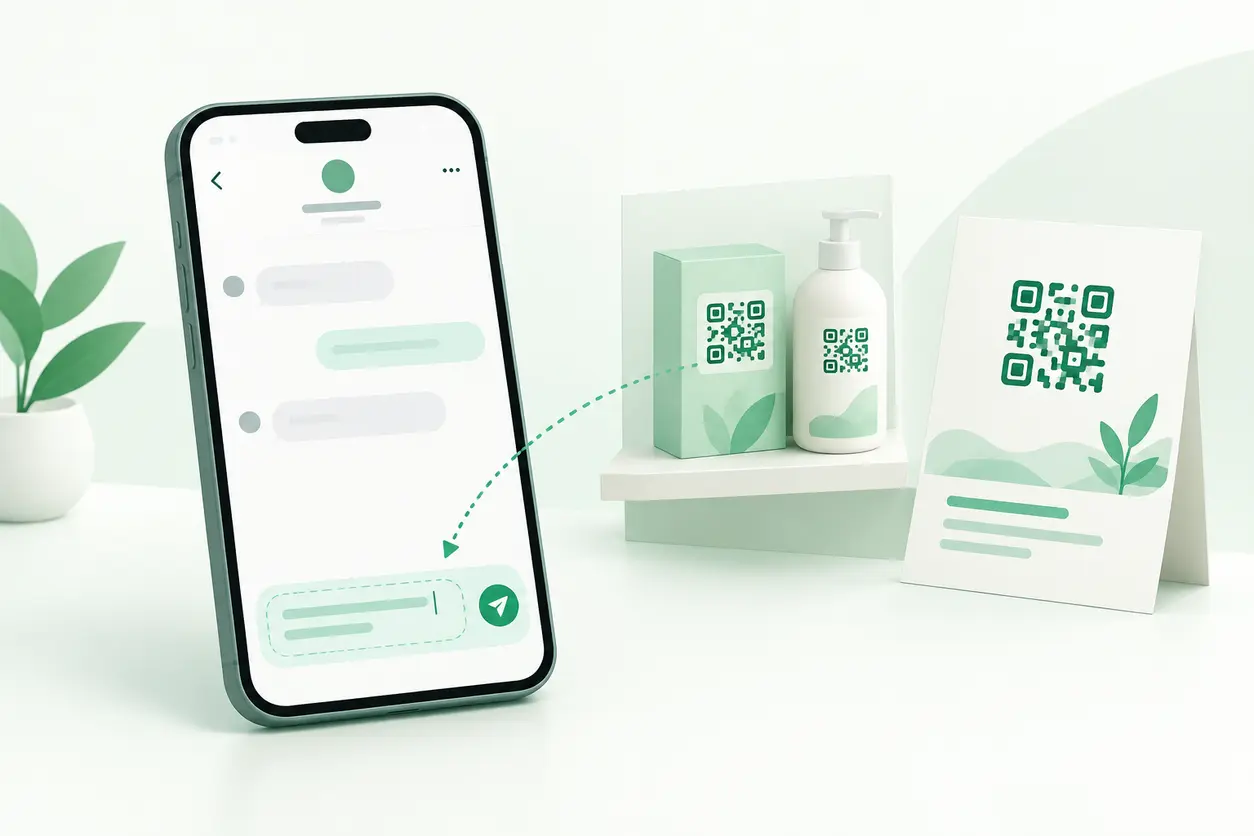
A QR code containing a WhatsApp click-to-chat link takes the customer toward a conversation with the specified number. With the text parameter included, the message appears in the chat's text field. WhatsApp's official click-to-chat instructions explain the phone-number format and prefilled-message behavior.
The intended journey is:
- The customer scans the code and opens its link.
- They continue into WhatsApp, completing any app or browser handoff required.
- They review or edit the prepared message.
- They choose whether to tap Send.
This workflow does not automatically send a message, create a CRM lead, confirm a reservation, or trigger a business reply. QR Rapid supplies the QR entry point; this is not an official WhatsApp API integration or an automated messaging workflow.
Build the prefilled message link correctly
The click-to-chat structure is https://wa.me/NUMBER?text=ENCODED_MESSAGE. The number identifies the recipient; the text parameter supplies the editable draft. Follow WhatsApp's documented syntax rather than using a contact name or a locally formatted telephone number.
Use the international-format number
For illustration, a number displayed as +1 202 555 0147 becomes 12025550147 in the link. This is an example number, not a destination to publish.
Use your own WhatsApp-enabled number with its country code. Do not include the plus sign, spaces, parentheses, or hyphens in the URL. Check the correct international representation rather than copying a domestic dialing format unchanged.
URL-encode the message text
Example customer-facing message:
Hi, I would like a quote for curtain fitting. Source: FLYER-Q.
Encoded text:
Hi%2C%20I%20would%20like%20a%20quote%20for%20curtain%20fitting.%20Source%3A%20FLYER-Q.
Complete illustrative link:
https://wa.me/12025550147?text=Hi%2C%20I%20would%20like%20a%20quote%20for%20curtain%20fitting.%20Source%3A%20FLYER-Q.
Here, %20 represents a space, %2C a comma, and %3A a colon. Encode the message value, not the entire URL. Avoid encoding an already encoded value again: seeing %2520 where you expected spaces is a useful warning sign.
Keep the draft short and readable. Its job is to start the conversation, not collect every detail before a staff member responds.
Five prefilled message templates for customer inquiries
These are illustrative templates. Replace the business details before generating each link. Any bracketed prompts are for the customer to edit manually; they are not automatic form fields.
1. Quote request from a service flyer
Prefilled message:
Hi, I would like a quote for curtain fitting. My area is [area], and I need help with [number] windows. Source: FLYER-Q.
Printed CTA: Scan to draft a WhatsApp quote request.
This gives the service team an initial scope and location. Ask for measurements or photographs in the conversation if needed, rather than making the first message overwhelming. Do not describe the scan itself as submitting a quote request.
2. Reservation inquiry from an appointment card
Prefilled message:
Hi, is a haircut appointment available on [date] around [time]? This is for [number] people. Source: SALON-CARD.
Printed CTA: Ask about appointment availability on WhatsApp.
For salons and other appointment-based services, the wording should request availability—not announce a confirmed booking. Staff still need to agree on the date, time, service, and any other booking conditions.
3. Support request from a product insert
Prefilled message:
Hi, I need setup help with the AX-200 desk lamp. The step I am stuck on is [brief description]. Source: AX200-INSERT.
Printed CTA: Scan to draft a setup question.
Include the model in the fixed text so support does not have to ask which product the customer owns. Leave personal information out of the public template. Request any necessary order reference privately after the customer starts the conversation.
4. Store-visit inquiry from a window sign
Prefilled message:
Hi, I am planning to visit your North Street store. Can you confirm today's opening hours and whether collection is available? Source: NORTH-WINDOW.
Printed CTA: Ask about visiting or collecting on WhatsApp.
This is useful when someone passes a store outside opening hours. Add your actual reply hours beside the code so a prepared message does not create an expectation of immediate service.
5. Product enquiry from a shelf label
Prefilled message:
Hi, I am interested in the Ridge backpack, SKU RB24, in blue. Is it available, and can you help me compare sizes? Source: RB24-SHELF.
Printed CTA: Ask our team about this backpack.
A product name, SKU, and variant make the opening message more useful than a generic request for information. Keep prices and stock promises out of fixed text unless someone will maintain them. The template should ask a question, not promise availability.
Create the QR code in QR Rapid: check fields first
QR Rapid lists WhatsApp among its available QR types. Before choosing a creation route, open the QR Rapid creator and inspect the fields currently shown.
Check the WhatsApp option for both a recipient-number input and a prefilled-message input. Use that route only if both are available. Do not assume that entering a number alone will add your intended message. Follow any country-code controls shown, and enter readable message text rather than encoded text unless the field explicitly requests otherwise.
For the complete-link method, first confirm that the Website URL option provides a destination field that accepts your full click-to-chat URL. Once that check is complete:
- Replace the illustrative number with your business number.
- Encode your chosen template and assemble the complete link.
- Open that link directly and verify the recipient and draft.
- Select the Website URL option and paste the complete link into its destination field.
- Generate the code, apply the available design settings, and download the artwork.
- Scan the downloaded version before placing it in your print design.
Use a descriptive record name wherever naming is available, such as North Street — Window — Visit Inquiry. Keep the final message text alongside the artwork so another team member can check it later.
Test the draft, not just whether the code scans
Before printing, run through the customer journey on the phones your team can access:
- Recipient: Does the link reach the intended business account?
- Message: Are punctuation, spaces, product details, and line breaks readable?
- Editing: Can the customer replace any prompts without confusion?
- Sending: Does the message remain a draft until the customer taps Send?
- Reception: After an intentional test send, does the responsible staff member receive it?
- Print: Does the code work at its intended size and viewing position?
If the message is missing, check that the complete ?text= value survived copying. If it displays encoded characters, review how the text was encoded and entered. Test the final exported artwork, not only a creator preview.
Use a distinct code per placement when comparison is available
Create separate records for the window sign, shelf label, flyer, and support insert rather than reusing one code everywhere.
If your selected QR Rapid setup provides per-code scan reporting, separate tracked codes let you compare those entry points. Confirm that reporting is available before planning a scan-based comparison; different artwork alone does not create tracking.
Placement labels such as NORTH-WINDOW also help staff recognize the source of received messages. However, customers can edit or delete them, so they are conversation clues—not guaranteed attribution.
Keep scan counts separate from received inquiries. A customer may open the draft and leave without sending it. Likewise, a support conversation is not automatically a new sales lead.
Keep privacy and permission practical
Treat the encoded phone number and template as public information. Do not embed passwords, payment details, private customer information, or individual order data in a publicly displayed QR destination.
Use the inquiry to answer the customer's question. Do not treat a scan—or even a sent inquiry—as blanket permission for promotional messaging; ask separately before adding someone to marketing follow-up. Avoid asking customers to send sensitive information through the opening template.
Create your first prefilled inquiry code
Choose one entry point and one useful question. Build the link, check the available fields in the QR Rapid creator, and test the complete scan-to-draft-to-send journey. Then publish it with a CTA that accurately describes the action: draft an inquiry, review it, and send when ready.
FAQ
Does scanning a WhatsApp QR code send the prefilled message automatically?
No. The prefilled text appears in the chat's message field, and the customer decides whether to send it. WhatsApp's click-to-chat instructions describe how the prepared message works.
What phone-number format should I use in the WhatsApp link?
Use the recipient's WhatsApp-enabled number in international format with the country code and digits only. For example, the illustrative number +1 202 555 0147 becomes 12025550147. Verify your own number's international representation before publishing.
Can customers change the prefilled message?
Yes. Treat the text as an editable starting point. Product references, placement labels, and bracketed prompts can be changed or removed, so do not rely on them as mandatory fields.
What if QR Rapid's WhatsApp option does not show a message field?
Do not assume it will add prefilled text. Check whether the Website URL option accepts a complete click-to-chat link, then use your tested link containing the encoded text parameter. Verify the resulting QR code before printing.
Can I compare scans from a flyer and a store window?
Use separate tracked codes if per-code reporting is available in your selected setup. A source label in the message can identify some received inquiries, but it does not measure scans and customers can edit it.
Similar Blogs
The latest industry news, interviews, technologies, and resources.

Join 2,000+ subscribers
Stay in the loop with everything you need to know.
We care about your data in our privacy policy