
Dynamic QR Platform
Create QR codes Instantly
Website URL
Send users to any webpage
Website URL
Website URL
Send users to any webpage
Wi-Fi
Let users connect instantly
Wi-Fi
Wi-Fi
Let users connect instantly
Menu
Create a digital menu
Menu
Menu
Create a digital menu
Start a chat with one tap
Start a chat with one tap
Image
Showcase visuals
Image
Image
Showcase visuals
Show a downloadable file
Show a downloadable file
24 Nov 2026 • 9 min read
Editable QR Codes for Seasonal Retail Promotions: Update Campaigns Without Reprinting
Build a seasonal retail workflow in QR Rapid that reuses printed signs and packaging while destinations change. Learn how to proof updates, handle expired offers, and choose separate codes when campaign comparisons matter.
IntroductionStart with a printed promise that can survive the seasonWhat QR Rapid does—and what this workflow addsBuild one seasonal print workflow from spring to holidayProof-check the print and the changed destinationWrite an expiration policy before the offer launchesUnderstand what seasonal reuse does to campaign analyticsChoose the setup that matches your retail prioritiesFAQ
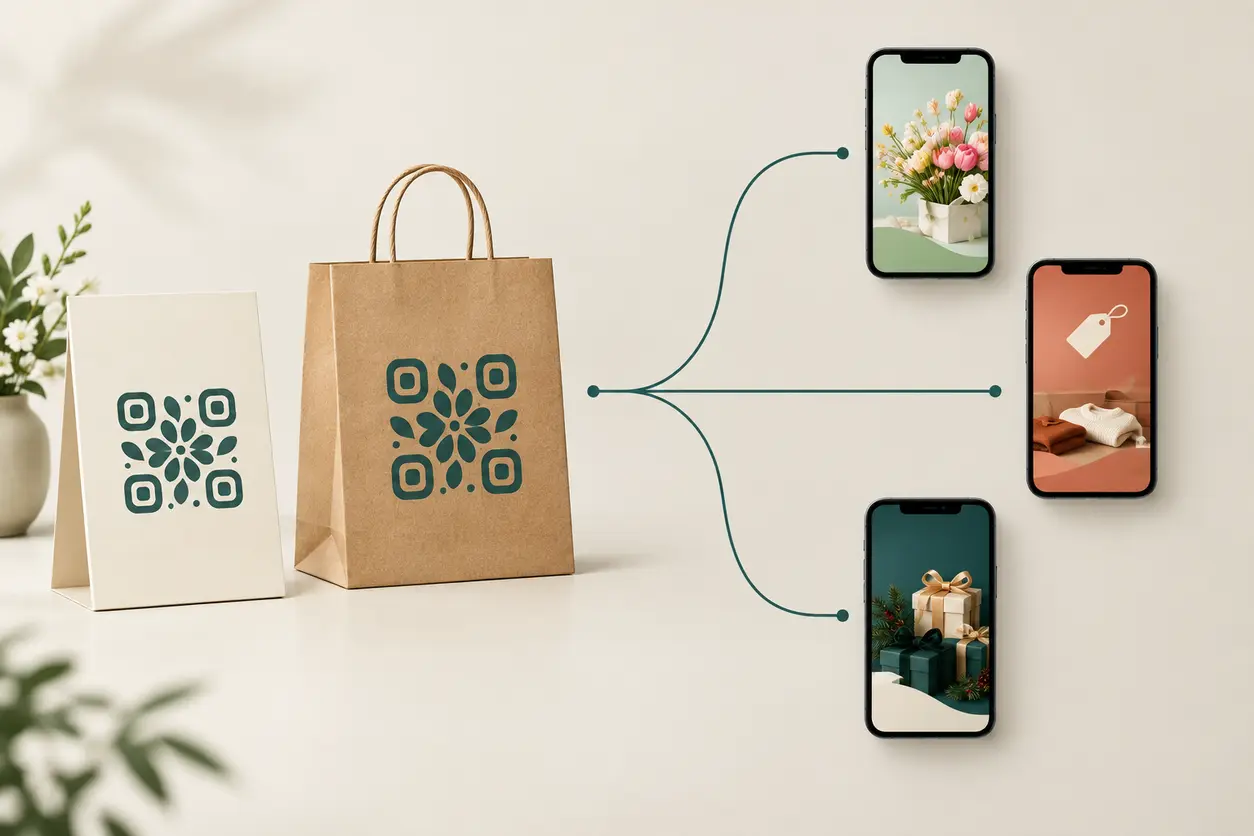
An editable QR code for print marketing lets a retailer keep the same code on reusable signs, shopping bags, or package inserts while changing the destination customers reach. The opportunity is less artwork replacement and fewer print-changeover tasks—not a guarantee that every seasonal poster can stay in circulation.
The operational catch matters just as much: changing one shared code changes the destination for every surviving copy. Reusing that code also mixes seasonal activity under the same code identity unless you maintain a reporting process.
Here is a practical lifecycle for making that tradeoff deliberately with QR Rapid.
Start with a printed promise that can survive the season
A reusable code needs reusable surrounding copy. A counter sign saying Scan for current offers can reasonably lead to spring arrivals, then a sale, then holiday bundles. A sign saying Scan for the spring launch discount cannot become a holiday promotion simply because its destination is editable.
Useful evergreen examples include:
- Retail counter sign: Scan for this season’s offers.
- Cafe table card: Explore our current seasonal specials.
- Shopping-bag panel: Discover what’s new in store.
- Reusable packaging insert: See current collections and offers.
Keep campaign-specific prices, deadlines, and product claims on the destination page or a replaceable part of the display. If those details are printed permanently, plan to replace that material when they stop being accurate.
A directly encoded, fixed destination is not the right choice for this particular workflow. You need a dynamic URL code whose destination can be edited after printing.
What QR Rapid does—and what this workflow adds
QR Rapid advertises editable destinations and scan analytics. Those capabilities support keeping printed artwork in use while changing the page behind it and reviewing scan activity.
The workflow below adds manual operating procedures around those capabilities. A campaign calendar, approval record, destination-change log, and reporting spreadsheet are processes your team maintains; they are not presented here as built-in QR Rapid features.
Likewise, do not assume dynamic editing includes scheduled switching, automatic offer expiration, destination-version history, rollback controls, coupon redemption, or purchase attribution. Your website or commerce platform handles the offer, availability, and checkout experience. QR Rapid provides the editable QR connection; your team remains responsible for what customers find after scanning.
Build one seasonal print workflow from spring to holiday
The following is an illustrative workflow for a small retailer using one evergreen code on counter signs and shopping bags. A cafe can apply the same process to seasonal drinks, a summer special, and holiday preorders.
1. Choose the code’s job before creating artwork
Define the promise narrowly enough to stay useful: This code opens our current seasonal promotion. Do not also make it the permanent product-instructions or customer-support code.
Assign an owner who will update the destination, plus a backup. Keep a simple record containing:
- Code name or identifier, such as Evergreen seasonal offers.
- Every placement using it, including stored packaging.
- Current and next approved destinations.
- Campaign start and end times, including timezone.
- The person approving each change.
- The destination to use between campaigns.
This placement inventory prevents an easy mistake: updating a counter sign’s code without realizing it also appears on bags already in customers’ homes.
2. Launch the spring promotion
Prepare the spring landing page on your own website or commerce platform. It should explain the featured range, availability, offer conditions, and the next action, such as browsing eligible products.
Create the dynamic URL code in QR Rapid and use the spring page as its initial destination. Before committing to the print run, confirm that you can edit that code’s destination and that your selected plan suits the intended period of use.
Place the saved QR artwork on the evergreen counter sign and bag design. Keep the original artwork file and a physical proof. You will use that same proof to test later changes rather than generating replacement artwork at every seasonal handover.
3. Switch from spring arrivals to a sale
Prepare and approve the sale page before changing the QR destination. Check eligible products, offer conditions, stock messaging, and the checkout path in the systems that control them.
At the agreed handover:
- Save the available spring reporting information.
- Record the outgoing destination and change time.
- Edit the destination of the existing QR code in QR Rapid.
- Scan the original physical proof and a live counter sign.
- Confirm that both reach the approved sale page.
- Tell staff what customers will now see.
Do not create a new code accidentally and substitute its artwork in your files. That would leave the copies already printed connected to the original code.
Every copy of the shared code now leads to the sale—including a bag handed out during spring. That is appropriate only because its printed invitation promised current offers rather than a particular spring benefit.
4. Move into holiday promotions
Use the same handover process for holiday gift bundles, seasonal menus, or preorder collections. Check fulfillment details especially carefully: collection dates, ordering cutoffs, participating locations, and availability should match the page customers can actually use.
For packaging that may remain unopened for a while, prefer a current holiday collection page over a fragile link to one item that could sell out immediately. Provide a useful alternative when a featured product becomes unavailable.
Do not redirect spring-specific packaging to holiday gifting if the printed copy promised access to a spring offer. Keep a relevant expired-offer explanation available or use a separate code for that campaign from the beginning.
5. Return to an off-season destination
After the holiday promotion, update the shared code to a maintained current-offers page or a clear message that no seasonal promotion is running.
A useful off-season page can offer a route to the normal collection without implying that an expired discount remains valid. Keep the next review date in your campaign calendar so the code does not become an abandoned task once the busy period ends.
Proof-check the print and the changed destination
Proofing is not finished when the QR artwork scans once. You need to verify both the physical code and the customer journey it opens.
Before the initial print run:
- Scan an actual-size proof on the intended material.
- Check the code after the bag is folded or the package is assembled.
- Make sure trim lines, seams, glare, and nearby graphics do not interfere with scanning.
- Try more than one phone under realistic lighting.
- Read the printed invitation alongside the destination to confirm they agree.
After every destination edit:
- Scan an existing printed copy, not just an on-screen preview.
- Open the journey without a staff login or a previously authenticated browser session.
- Check the page headline, products, prices, dates, and offer conditions.
- Follow the primary action through to the relevant booking, basket, or order step.
- Record who checked it and when.
Keep the previous destination address in your manual change log. If the new page is wrong, use that record to make a corrective edit; do not assume a built-in rollback function exists.
Write an expiration policy before the offer launches
An offer ending and a QR service remaining available are separate questions. Your policy should cover both.
Define what happens when the promotion ends
Document the offer’s closing time and timezone, the owner responsible for changing the destination, and the replacement page. Put redemption restrictions and checkout enforcement in your commerce or offer-management system, not just in the QR landing page copy.
Do not rely on redirecting the code alone to close an offer. Customers may have saved the original landing-page address, and that page still needs appropriate end-of-offer handling.
Unless you have separately confirmed suitable automation, assign the QR destination change as a manual calendar task with a backup owner.
Keep late scans understandable
A customer may scan an old package after the promotion ends. If the package names a specific campaign, explain that the promotion has ended and offer a relevant next step. Avoid silently replacing a specific promised benefit with an unrelated campaign.
For evergreen packaging, current offers are usually a better fit—but review how long that packaging is expected to circulate.
Confirm service continuity before committing to durable print
Check the current QR Rapid plans and pricing and clarify any terms that affect continued use. In particular, confirm what happens after a trial, cancellation, plan change, or any applicable usage limit. Do not promise permanent operation without confirming those conditions.
Understand what seasonal reuse does to campaign analytics
The measurement question is not simply whether scans are recorded. It is what those scans can tell you after the destination changes.
When spring, sale, and holiday promotions share one code, a code-level total spans those campaigns. Editing the destination is not the same as creating a separate campaign record. Do not assume earlier scans are automatically grouped by the destination that was active at the time, or that a destination change resets reporting.
There is also a physical attribution problem. During the holiday period, scans may come from newly displayed signs and bags distributed in spring. Because those copies share the same code, the code alone cannot identify which printed season produced the scan.
Use a manual handover log for an evergreen code
At each changeover, save the reporting information available to you and record:
- The outgoing campaign and destination.
- The exact switch time and timezone.
- The incoming campaign and destination.
- The available scan totals or reporting view.
- Known staff testing and unusual distribution changes.
If your reporting view supports date ranges, review periods aligned to those handovers. Otherwise, comparable cumulative-total snapshots can help estimate interval activity. Label the result as scans during a period, not scans attributable to that season’s printed materials.
Scan activity is also not a purchase count. Use your commerce records or website measurement process to evaluate orders and redemptions rather than treating QR scans as sales.
Use separate codes when comparisons are the goal
Create separate spring, sale, and holiday codes when you need cleaner campaign-level comparisons, when printed promises differ, or when materials remain in circulation simultaneously.
Separate codes distinguish the printed campaigns, although comparisons still need context: distribution volume, display duration, offer strength, and stock availability may differ. If you also need sign-versus-packaging comparisons, those placements need distinct code identities too.
A practical compromise is one evergreen code for durable counter signs, with separate campaign codes on time-limited flyers or promotional inserts. You retain editing convenience without making every reporting question depend on one shared code.
Choose the setup that matches your retail priorities
Use one editable code when the print promises current information, reducing seasonal print-changeover work is the priority, and period-based reporting is sufficient.
Use separate codes when campaign comparisons, placement attribution, or historical offer promises matter more than reusing identical artwork. Dynamic editing can still be useful within each separate campaign—for example, to replace a sold-out collection page with a relevant alternative.
Before committing, confirm destination editing, analytics detail, applicable limits, service-continuity terms, and how your team will preserve campaign records. Those are more useful buying criteria for this workflow than an unsupported savings estimate.
Start with one reusable placement in QR Rapid, test a complete destination handover using the same printed proof, and document the result. Once the routing, expiration policy, and reporting method work together, extend the setup to the rest of your seasonal print.
FAQ
Can I use the same printed QR code for spring, sale, and holiday promotions?
Yes, with a dynamic code that supports destination editing. Keep the printed invitation evergreen, such as Scan for current offers, and test the existing printed code after each update. Every copy sharing that code will lead to the new destination.
Will changing a QR destination separate my seasonal analytics automatically?
Do not assume it will. Maintain a changeover log and save the available reporting information before each update. Use separate codes when you need distinct campaign identities rather than reporting only on activity during seasonal periods.
What should happen when a seasonal offer expires?
Enforce the offer deadline in your commerce or offer-management system, handle the original landing page appropriately, and update the QR destination as planned. Campaign-specific print should lead to a clear expired-offer explanation or another relevant destination.
Does QR Rapid automatically schedule seasonal destination changes?
This workflow relies on QR Rapid’s advertised destination editing, not an established scheduling feature. Plan manual changes with an owner, backup, and calendar reminder unless you separately confirm automation that meets your needs.
Should shopping bags and counter signs share one seasonal QR code?
They can if both promise current offers and you do not need to distinguish their scan activity. Use separate codes if you want placement-level comparisons or need packaging to retain a different destination from the counter sign.
Similar Blogs
The latest industry news, interviews, technologies, and resources.
 October 23, 2026
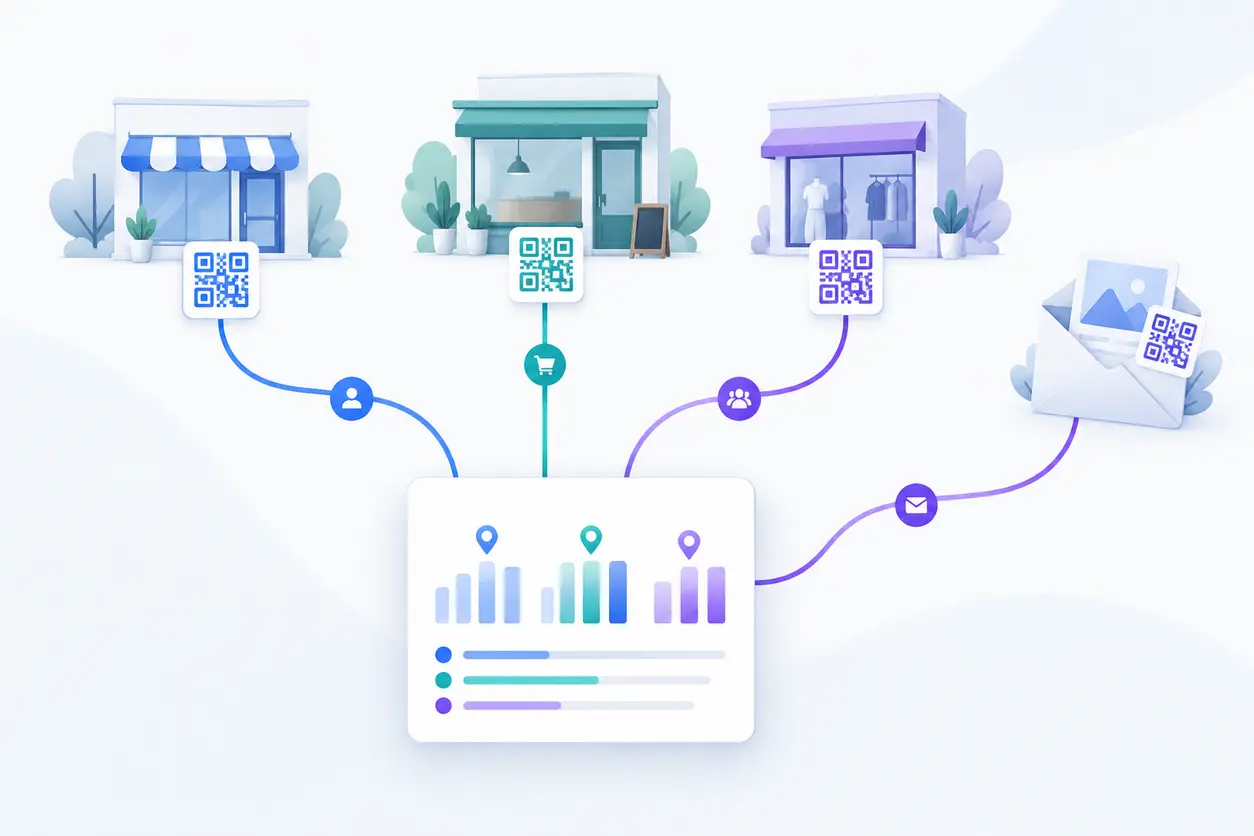
How to Track QR Codes by Location: A Practical Offline Campaign Attribution Framework
How to Track QR Codes by Location: A Practical Offline Campaign Attribution Framework
Read post
Join 2,000+ subscribers
Stay in the loop with everything you need to know.
We care about your data in our privacy policy