
Dynamic QR Platform
Create QR codes Instantly
Website URL
Send users to any webpage
Website URL
Website URL
Send users to any webpage
Wi-Fi
Let users connect instantly
Wi-Fi
Wi-Fi
Let users connect instantly
Menu
Create a digital menu
Menu
Menu
Create a digital menu
Start a chat with one tap
Start a chat with one tap
Image
Showcase visuals
Image
Image
Showcase visuals
Show a downloadable file
Show a downloadable file
20 Nov 2026 • 10 min read
QR Codes for Food Trucks: Update Menus and Ordering Links Without Reprinting
Build a repeatable QR Rapid setup for food trucks, mobile coffee carts and rotating pop-ups. Compare Menu and dynamic Website URL codes, choose three practical placements, and keep menus, locations and ordering destinations current.
IntroductionChoose what customers should see after scanningMenu QR versus dynamic Website URL: which fits?Keep placements limited to three useful touchpointsBuild the setup in QR Rapid before printingExample: one vendor, changing stopsWeekly food truck QR code update checklistTest outdoors on mobile dataMeasure scans without calling them ordersStart with the destination you change most oftenFAQ
A food truck QR code works best when the printed code stays consistent while someone on your team maintains the menu or destination behind it. With QR Rapid, the main choice is between a Menu code for an editable hosted menu and a dynamic Website URL code for an external page you control.
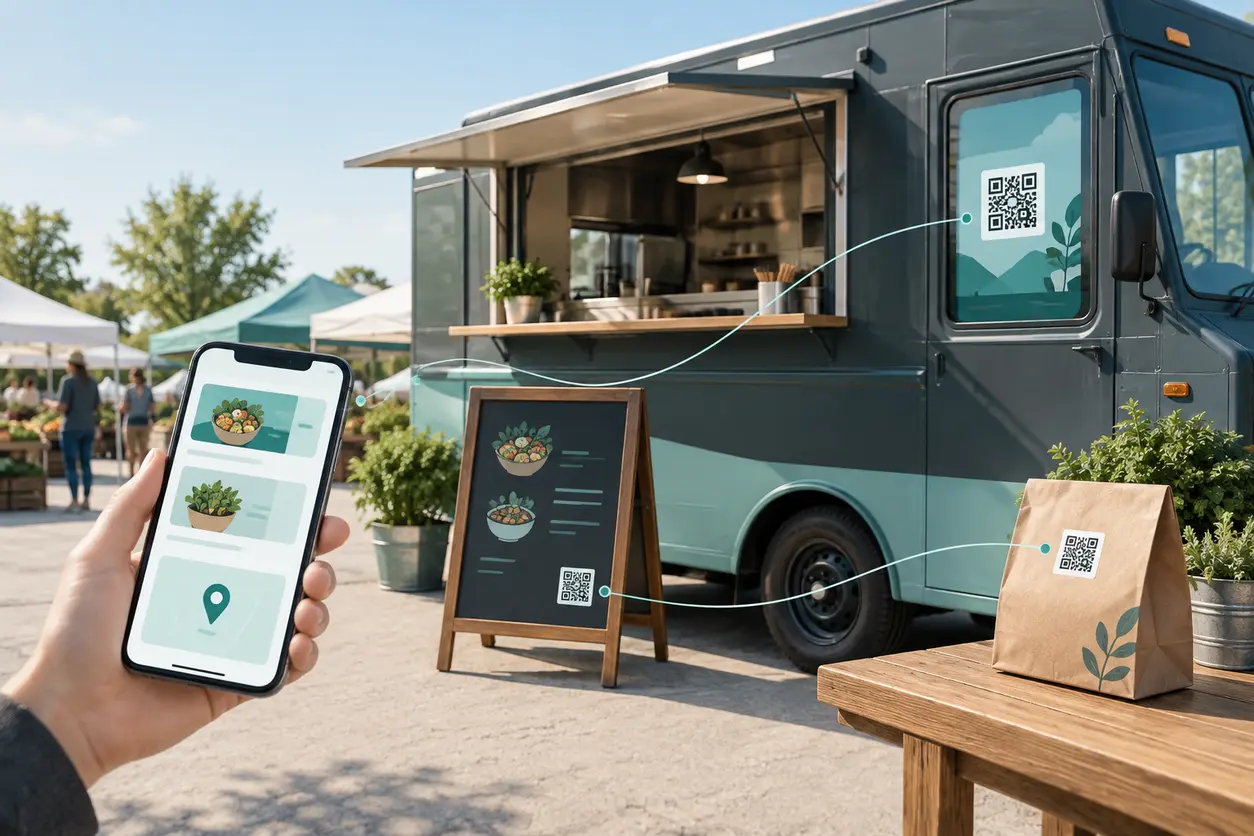
Start with three placements: a counter menu sign, takeaway packaging and a parked-truck window. Give each a clear job, then build a repeatable update-and-test routine around your trading schedule.
Choose what customers should see after scanning
Before creating a code, finish this sentence: “Someone scanning here needs to…”
At the counter, the answer might be “check today’s food before ordering with staff.” On takeaway packaging, it might be “find our next stop.” At the parked-truck window, it might be “check whether pickup ordering is open.”
These are different destinations, even if they belong to the same business. Avoid sending everyone to a general homepage where they must search for the relevant information.
For a rotating vendor, a useful external landing page could show:
- The next confirmed stop, with its date and service hours.
- Today’s menu or a clearly labeled menu link.
- An ordering button when orders are being accepted.
- A pickup note naming the correct event or location.
- An optional loyalty link below the immediate service information.
You maintain that page yourself or through your existing website provider. QR Rapid supplies the QR connection; it does not automatically track the truck, publish its current position or process orders.
Menu QR versus dynamic Website URL: which fits?
QR Rapid’s QR code types include Menu, Website URL, Coupon and Social media codes. For this mobile-vendor setup, Menu and dynamic Website URL are the main options.
Choose Menu QR when the menu is the destination
A Menu code suits a coffee cart whose drinks and prices change, or a lunch truck that wants customers to browse before ordering with staff. QR Rapid’s restaurant QR code overview provides context for its menu-focused offering.
An editable hosted menu lets you maintain the menu behind the printed code. However, check the current Menu editor before committing: do not assume it includes automatic sold-out controls, scheduled menus, ordering buttons, location fields or integrations.
If an item becomes unavailable, use the editing controls actually available to make the menu accurate. Assign that update to a named person rather than assuming it happens automatically.
Choose dynamic Website URL when the destination changes
Use a dynamic Website URL code when you already have an external mobile menu, ordering site, current-location page or loyalty enrollment page.
This is the stronger fit when you may switch ordering providers or need a page combining schedules, menus and pickup instructions. You can update the dynamic destination without replacing the printed code, provided the new destination still matches its printed promise.
A code labeled “Today’s menu” should not suddenly lead only to a loyalty signup form. Dynamic editing changes the destination, not the words already printed beside it.
Match the type to the operational change
- Menu changes: Use Menu QR for a hosted menu, or Website URL for a menu maintained on your own site.
- Location announcements: Prefer Website URL to an external page containing a dated stop list or current-location update. The page must be maintained by you or an external service.
- Ordering sites: Use Website URL to your ordering provider’s correct location or event page. Ordering, payment and fulfillment remain with that provider and your team.
- Loyalty: Use Website URL to an existing enrollment page when that is the scan’s stated purpose. Keep it secondary when customers primarily need today’s service details.
Where static QR codes fit
A static URL code keeps the same encoded address. You can still edit content at that address if you control the page, but changing the encoded destination requires a new code. Dynamic is useful when the address itself may change. Before printing, confirm that the code you created is dynamic and test its destination-editing behavior.
Keep placements limited to three useful touchpoints
Counter menu sign: help customers decide
Place one sign where customers can pause and scan without blocking the handoff area. For a mobile coffee cart, keep it clear of the grinder, payment terminal and splash zone.
Use a specific prompt such as “Scan today’s drinks menu” or “Scan the menu, then order with us.” If the code opens an ordering site instead, say so explicitly.
Choose Menu QR when browsing is the whole task. Choose dynamic Website URL when customers need an external menu or checkout. Keep a readable basic menu or staff-assisted alternative available when reception is poor.
Takeaway packaging: support the next visit
A bag or food box leaves the service location, so its code should remain useful after today’s session ends. A dynamic Website URL pointing to your maintained schedule page is a practical choice.
Try “Find our next stop” rather than printing a temporary venue name beside the code. The destination can lead with the next confirmed service and offer ordering or loyalty options underneath.
Position the code on a flat panel, away from folds, closures, grease-prone areas and surfaces customers must tear open. Test the finished package, not only the flat artwork.
Parked-truck window: explain what happens now
Treat the window code as a pedestrian touchpoint while the truck is parked, not something people should scan while driving.
Use “Scan for today’s menu and pickup details” or “See our next service.” Position it where someone can stand safely without entering the collection queue.
Check the sign with the window in its actual service position. A sliding hatch, reflection or open shutter can hide an otherwise well-designed code. If online orders are closed, the destination should explain that before customers begin checkout.
Build the setup in QR Rapid before printing
1. Prepare and inspect the destination
Open the intended page on a phone. Check the service date, venue, prices, pickup instructions and ordering status. For an external ordering page, confirm that it identifies the correct truck or event rather than a default location.
For Menu QR, build a small working menu first and inspect the customer-facing result. Confirm that its available editing controls cover the changes you make during a normal trading week.
2. Create and label each code
Create the appropriate QR type in QR Rapid. For Website URL codes that need destination changes, use the dynamic option and verify it before downloading.
Use descriptive internal names such as “Truck — Counter — Menu” and “Truck — Packaging — Next Stop.” Separate codes by placement if you need to distinguish their scan activity; do not create a new code for every weekly stop unless you have a specific reporting reason.
3. Customize conservatively
Keep a strong visual distinction between the code and its background, and leave its surrounding clear space unobstructed. Put the scan instruction beside it, not over it.
Before committing to a plan or print run, check the current account’s dynamic-code allowance, destination-editing access, reporting options and download formats. Confirm who can make urgent updates during service.
4. Test an update using the same printed proof
For a dynamic Website URL code, print a proof, scan it, change the destination to another appropriate test page, then scan the same proof again. For Menu QR, change a menu detail and confirm that the existing proof opens the updated menu.
This checks the workflow you actually need, without assuming different QR types can be converted into one another.
Example: one vendor, changing stops
Imagine a taco truck trading at an office park on Tuesday and a brewery on Friday. Its counter Menu code opens the maintained hosted menu. Staff update the relevant items before each session.
The packaging code opens an external “next stop” page. After Tuesday’s service, the owner makes Friday’s brewery details the lead information. Tuesday’s takeaway bags still have a useful destination.
The parked-window code opens the truck’s external service page, which links to the correct ordering session when available. If the ordering provider changes, the owner updates the appropriate dynamic destination or page link.
Nothing in this example requires automatic truck tracking. The reliability comes from a maintained destination and a clear handover between services.
Weekly food truck QR code update checklist
Give one person responsibility for this check before the trading week, with a quick recheck before each service:
- Confirm stops: Add dates, venue names, service hours and pickup instructions. Remove canceled appearances.
- Check menu accuracy: Review items, prices and availability against what the truck will actually serve.
- Verify ordering: Open the external order page and check location selection, pickup windows and whether orders are open.
- Check closed-service behavior: Make sure customers can see when ordering will reopen or where the next service will be.
- Review return-visit links: Confirm that packaging still leads to a useful next-stop page and that any loyalty link works.
- Scan all three placements: Use the physical counter sign, a finished package and the parked-window sign.
- Inspect the print: Look for damage, dirt, peeling edges or anything obscuring the code.
- Record the check: Note who checked, when, and which destination each code should open.
After a venue change or ordering-provider change, repeat the destination check immediately rather than waiting for the next weekly review.
Test outdoors on mobile data
A desk-based scan is only the first check. Run the final test where customers will actually use each code.
- Use different phones: Include an iPhone and an Android phone where available, using their normal camera apps.
- Turn off Wi-Fi: Check the destination on mobile data at the trading location.
- Vary the light: Try direct sun, shade and your evening service lighting.
- Test normal positions: Scan from where a customer can comfortably stand, including an angled approach to the window.
- Use finished materials: Check the actual sign covering, window glass and filled takeaway package for glare or distortion.
- Finish the journey: Read the menu, find the next stop or follow the ordering path far enough to verify it is usable.
If the code opens but the destination is difficult to use, fix the page rather than redesigning the code. Keep a readable web address and staff assistance available as fallbacks.
Measure scans without calling them orders
Separate three events in your reporting: QR scans, destination visits and completed orders. A customer may scan repeatedly, browse without buying, or scan and then order verbally at the counter.
Where available, compare QR scan reporting with destination analytics and the external ordering provider’s completed-order records. Use consistent placement labels and reporting periods. If the ordering platform supports source tracking, test whether that information survives the checkout journey.
Do not divide all orders by all scans and present the result as a verified scan-to-order conversion rate. Some orders may come from unrelated channels, while some scans never reach checkout. Without attributable completed-order data, report scans as engagement rather than revenue.
For packaging, an immediate order may not be the goal at all. The more relevant action could be viewing the next stop.
Start with the destination you change most often
Choose Menu QR if your main task is maintaining a hosted menu. Choose dynamic Website URL if you need to manage changing external menus, locations or ordering destinations.
Start in QR Rapid with the counter sign, prove that its update workflow works, then extend the setup to takeaway packaging and the parked-truck window. Keep the printed promise consistent, assign an update owner and test after changes. That is what makes the same printed code useful across a changing trading schedule.
FAQ
Can I change my food truck menu without reprinting the QR code?
Yes. You can edit the hosted menu behind a Menu code, subject to the controls available in the current editor. With a dynamic Website URL code, you can change the external destination. You can also update content on an external page you control without changing its URL.
Will QR Rapid automatically show my truck’s current location?
No. A dynamic Website URL code can open an external current-location or schedule page, but QR Rapid does not automatically track your truck. You or an external service must maintain the location information.
Can customers place food orders through the QR code?
A Website URL code can send customers to your external ordering site. That provider handles checkout and order processing; QR Rapid does not process the orders. Check that the link opens the correct truck location, event and pickup window.
Should takeaway packaging use the same code as the counter sign?
Only if the same destination serves both purposes. The counter often needs today’s menu, while packaging may be more useful when it opens a maintained next-stop page. Separate codes also help distinguish placement activity where reporting is available.
What should a parked-truck QR code show when ordering is closed?
Send customers to a page that clearly states ordering is closed and gives the next confirmed service date, location and hours. Keep the printed prompt broad enough to remain accurate, such as “See our next service.”
Does a QR scan count as a completed food order?
No. A scan may lead to browsing, a repeat visit or an order placed verbally. Use attributable completed-order data from your ordering provider to assess purchases, and report scans separately when that connection is unavailable.
Similar Blogs
The latest industry news, interviews, technologies, and resources.
 October 23, 2026
How to Track QR Codes by Location: A Practical Offline Campaign Attribution Framework
How to Track QR Codes by Location: A Practical Offline Campaign Attribution Framework
Read post


Join 2,000+ subscribers
Stay in the loop with everything you need to know.
We care about your data in our privacy policy