
Dynamic QR Platform
Create QR codes Instantly
Website URL
Send users to any webpage
Website URL
Website URL
Send users to any webpage
Wi-Fi
Let users connect instantly
Wi-Fi
Wi-Fi
Let users connect instantly
Menu
Create a digital menu
Menu
Menu
Create a digital menu
Start a chat with one tap
Start a chat with one tap
Image
Showcase visuals
Image
Image
Showcase visuals
Show a downloadable file
Show a downloadable file
28 Aug 2026 • 13 min read
QR Codes for Event Speaker Handouts and Session Resources
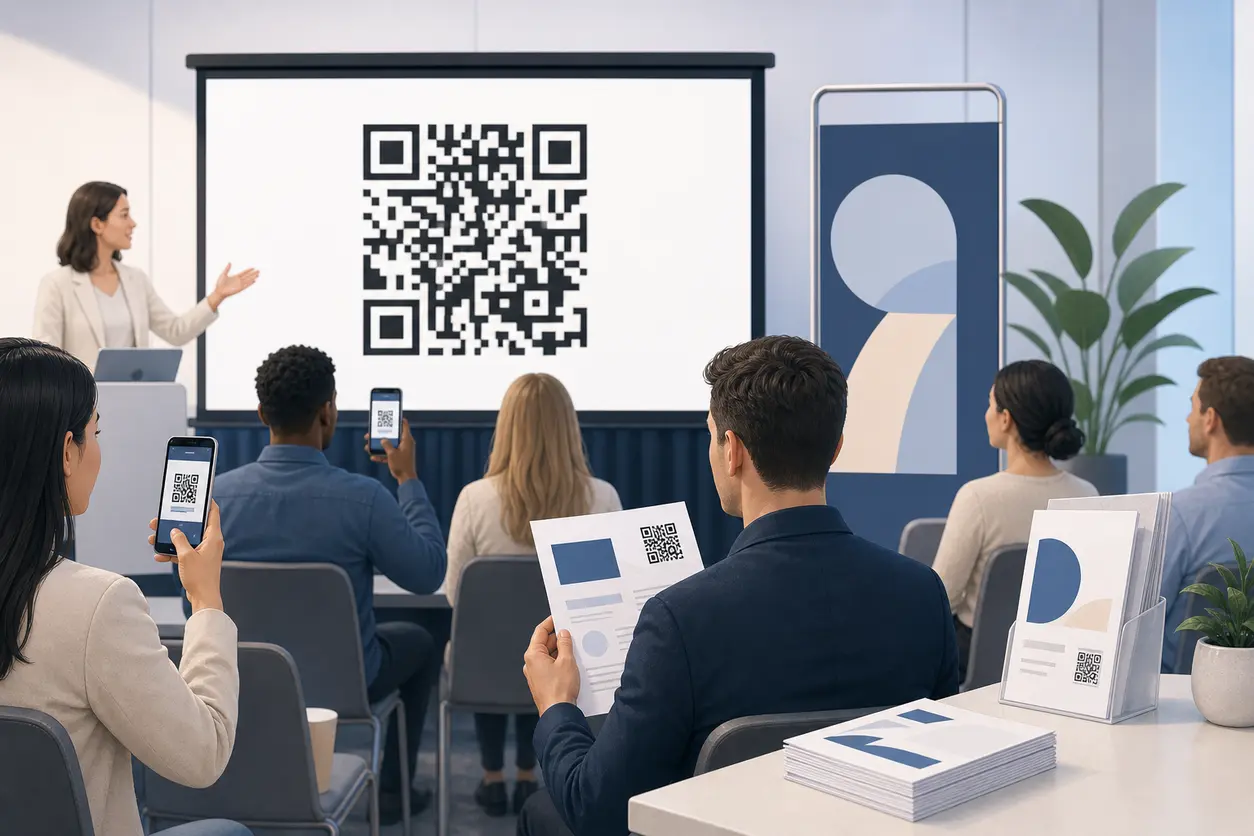
A practical guide for event organizers, conference speakers, trainers, and workshop hosts using an event speaker QR code to share decks, worksheets, follow-up links, recordings, and surveys from slides, badges, handouts, and room signage. Learn how to build a simple resource workflow, update links after the session without reprinting materials, and track which sessions drive the most scans with QR Rapid.
IntroductionWhat an event speaker QR code should actually doWhat speakers and organizers can share with one scanWhere to place an event speaker QR codeThe best destination is usually a session resource page, not a single fileA practical workflow for before, during, and after the eventHow to update resources without reprinting materialsHow to measure which sessions generated the most engagementBest practices for live presentation scanningCommon mistakes to avoidExample setups for different event formatsHow to set this up in QR RapidFinal takeawayFAQ
That is where an event speaker QR code becomes useful. Instead of treating QR codes as only a check-in or lead capture tool, organizers and speakers can use them to make every session handout live, trackable, and reusable. One scan can open a session resource page, a PDF deck, a worksheet, a follow-up survey, or a post-event recording page. If the destination changes after the session, a dynamic QR code lets you update the link without reprinting slides, badges, or signage.
For conferences, trainings, workshops, and internal events, this is one of the cleanest ways to reduce friction and improve session engagement, especially when you already use QR codes for event management.
What an event speaker QR code should actually do
The best event speaker QR code does more than open one file. It should support the full session resource workflow before, during, and after the event.
In practical terms, that means your QR code should help you:
- share materials instantly during the session
- avoid putting long URLs on slides
- keep printed handouts useful even if files change later
- give attendees one clear place to find follow-up resources
- measure interest by speaker, room, or session topic
- reduce the number of manual post-event resource emails
For many events, the smartest setup is not linking directly to a single PDF. Instead, link the QR code to a mobile-friendly session resource page that can hold multiple items, such as:
- slide deck
- downloadable worksheet
- recommended links
- speaker bio and contact details
- recording link added after the event
- follow-up survey
- certificate request form or continuing education instructions
With QR Rapid, that usually means creating a dynamic QR code that points to a landing page or file destination you can update later.
What speakers and organizers can share with one scan
A session resource QR code works best when it is built around attendee intent. Ask: what does someone want one minute after hearing this speaker?
Usually the answer falls into a few categories.
Session decks and presentation slides
This is the most obvious use case. Instead of telling people to photograph each slide or wait for a later email, place the QR code on the opening slide, closing slide, printed handout, and room sign. Attendees can grab the deck immediately.
If the speaker makes last-minute edits before the session, a dynamic QR code keeps the printed code usable because the destination can be replaced.
Worksheets and templates
Workshops and training sessions often depend on fillable worksheets, planning templates, checklists, or workbooks. Rather than printing thick packets for every attendee, you can share a digital worksheet version through the QR code.
This works especially well for:
- breakout exercises
- scorecards
- audit templates
- planning canvases
- note-taking pages
- homework or implementation sheets
Resource links and reference libraries
Many speakers mention tools, articles, books, and examples throughout a presentation. A QR code can lead to a curated list of links QR code instead of forcing attendees to jot down every URL.
This is useful when the session includes:
- software recommendations
- research articles
- frameworks
- reading lists
- vendor directories
- community links
Recordings and replay access
A strong post-event workflow adds the session recording to the same destination later. Attendees who scanned during the session can return to the same code, and late viewers can scan from printed handouts or event signage after the talk.
This is one reason dynamic QR codes are so valuable for event content. The printed asset stays the same while the content behind it evolves.
Follow-up surveys and feedback forms
Not every event survey needs to be sent in a mass email. A session-specific QR code can route attendees to a short feedback form tied to that speaker or topic.
This helps organizers learn:
- which speakers generated the most post-session action
- which topics were most useful
- which rooms had stronger scan activity
- which sessions need better follow-up materials
Certificates, CE resources, or next-step actions
For trainings and workshops, attendees may need to request completion certificates, access bonus resources, or join an implementation follow-up. A QR code on the last slide or handout can move them directly into that next step.
Where to place an event speaker QR code
Placement matters because session scanning happens in real time. People are seated, watching, and deciding in a few seconds whether scanning is worth the effort.
On presentation slides
Slides are the highest-visibility placement, but they need careful execution. Use the code on:
- the title slide before the speaker begins
- a transition slide before exercises
- the final slide for downloads and follow-up
Do not place a tiny QR code in the corner of every slide. That adds visual noise and does not improve scan behavior. In most sessions, one early placement and one closing placement are enough.
On speaker handouts
Printed session handouts become more useful when the QR code connects them to live content. This is ideal for agendas, worksheets, summary sheets, and one-page takeaways.
A handout QR code is especially effective when attendees want to revisit material after the event. It turns a static paper document into a gateway to updated resources.
On speaker badges or table tents
Speaker badges are not the best place for large file downloads during a talk, but they work well for light-touch resource access, especially in networking-heavy events. For example, a speaker badge code could open a short resource page with slides, bio, and contact options.
Use this format carefully. A badge is small, often moving, and sometimes under poor lighting. It is better as a supplemental placement than a primary one.
On room signage
Room signage near the entrance, on easels, or beside workshop stations can support attendees before or after a session without interrupting the presentation. This is one of the most practical placements for multi-session events because it lets people scan while entering, waiting, or leaving.
Room signs are also useful when you want separate tracking from the slide QR code. For example, you can compare scans from the room entrance versus scans from the speaker's closing slide.
On session recap emails or digital agendas
While this use case is anchored in physical event assets, the same QR code can also appear in digital follow-up. Adding it to recap emails or agenda pages creates continuity between onsite and post-event access.
The best destination is usually a session resource page, not a single file
Linking directly to a PDF is simple, but it can limit your workflow. If you already know attendees only need one document, a PDF QR code can work. But many sessions need more flexibility.
A session landing page usually performs better because it can hold multiple resources in one place and change over time.
A strong session resource page might include:
- a short session summary
- deck download link
- worksheet or template download
- related tools or reading
- replay or recording link added later
- speaker contact or profile link
- feedback survey
This structure prevents the common problem of having one QR code for slides, another for survey, and another for the recording. Too many codes create decision friction. One code with a clear destination is usually the better attendee experience.
With QR Rapid, you can create a dynamic QR code that points to a landing page and update that page as the session lifecycle changes.
A practical workflow for before, during, and after the event
The easiest way to get value from an event speaker QR code is to treat it like a content workflow, not a one-off graphic.
Before the event
Create one QR code per session, not one generic code for the whole event, unless the event is very small. Session-level codes make it much easier to track interest and manage updates.
Before the session, prepare:
- the main destination page or file
- naming conventions for each speaker and session
- placement versions for slides, handouts, badges, and signage
- a short CTA such as Scan for slides and session resources
If multiple people are producing materials, make sure everyone uses the same final QR code file. This prevents slide decks, signs, and handouts from pointing to different destinations.
During the event
Use the code when people have a natural reason to scan.
Good moments include:
- before the speaker starts
- when an exercise begins
- when the speaker references a downloadable asset
- on the closing slide during Q and A
- on signs outside the room as attendees leave
Avoid asking attendees to scan while you are advancing dense content quickly. If people feel rushed, many will skip it.
After the event
This is where the workflow becomes more powerful than printed packets.
After the session, you can update the same destination to add:
- the final slide deck
- a cleaned-up worksheet version
- recording or replay access
- answers to common questions
- a speaker follow-up form
- related sessions or next-step training
That means the code on every printed handout and room sign keeps working after the event. You do not lose value once the live presentation ends.
How to update resources without reprinting materials
Updating content is one of the main reasons to use a dynamic event speaker QR code.
Here is a simple post-session update model:
- During the event, the QR code points to a page with the current deck and a note that the recording will be added later.
- After the session, replace the temporary deck or add the final version.
- Add the replay link, bonus resources, or survey.
- Keep the same QR code active for recap emails, printed handouts, and future internal sharing.
This matters when:
- the speaker updates slides after rehearsal
- the worksheet needs corrections
- the recording is not ready on event day
- the organizer wants to add sponsor or partner links later
- internal training teams want to reuse the same handout next quarter
QR Rapid fits well here because dynamic QR codes let you manage the destination after distribution instead of starting over each time content changes.
How to measure which sessions generated the most engagement
If you want more than convenience, track at the session level.
The simplest measurement approach is to create separate dynamic QR codes for each session, and sometimes separate codes for each placement. That gives you clearer attribution.
For example, you might create:
- one QR code for Speaker A closing slide
- one QR code for Speaker A printed handout
- one QR code for the room entrance sign
- one QR code for Speaker B workshop worksheet
This helps answer practical questions such as:
- Which speaker topics drove the most scans?
- Did attendees scan more from slides or printed materials?
- Which rooms or tracks produced stronger follow-up activity?
- Which sessions should get expanded content next year?
You do not need to overcomplicate it. Even a basic naming structure can make reporting much cleaner:
- EventName-SpeakerName-Slides
- EventName-SpeakerName-Handout
- EventName-RoomA-Sign
- EventName-Workshop1-Worksheet
Within QR Rapid, keep codes organized by event and use consistent names so scan reports are meaningful later.
Best practices for live presentation scanning
Real-time session scanning has a narrower margin for error than packaging or print mailers. The code must work from a distance, on different phone cameras, and under varied room lighting.
Keep the call to action direct
People should know exactly what they get. Better examples include:
- Scan for slides
- Scan for deck and worksheet
- Scan for session resources
- Scan for replay and follow-up links
Vague CTAs like Scan me or Learn more are weaker in a conference setting.
Make the QR code large enough for the room
If the code appears on slides, design for the person in the back third of the room, not just the front row. A code that scans well on a laptop screen up close may fail on a projected slide across a ballroom.
Test the code in the actual presentation format when possible.
Use high contrast
Dark code on a light background is still the safest option for live presentations. Avoid low-contrast brand colors, patterned backgrounds, or busy slide images behind the code.
Leave enough on-screen time
If you show the QR code for only two seconds, many attendees will miss it. Keep it visible long enough for people to unlock their phone, open the camera, and scan.
This is another reason the final slide is valuable. It naturally gives attendees more time.
Avoid too many codes on one slide
If attendees must choose between slides, survey, worksheet, speaker profile, and networking links all at once, response drops. One code per moment is usually best.
Use mobile-friendly destinations
Even a perfectly designed code fails if it opens a clumsy file experience. Make sure the destination loads fast, works on mobile, and puts the most important resource near the top.
Common mistakes to avoid
Several avoidable issues can weaken this workflow.
Using a static QR code for content that will change
If the speaker deck, survey, or recording link might change, use a dynamic code from the start.
Linking directly to a desktop-only file repository
Attendees scanning in a session need immediate access, not a login wall or a confusing folder system.
Reusing the same code for every speaker
That makes attribution weaker and creates a generic attendee experience. Session-specific codes are much more useful.
Making the code too small on slides or badges
A design that looks elegant on a slide template may not be scannable in the room.
Forgetting post-event updates
If you promise recordings or bonus materials, update the destination promptly. Otherwise the workflow feels broken.
Example setups for different event formats
Conference keynote
Use one QR code on the opening slide and one on the final slide. The destination page includes the final deck, speaker links, and the recording added later.
Hands-on workshop
Use one code for the live worksheet and practice assets, plus the same code on the printed handout for post-session access. After the event, update it with the final template and replay.
Panel discussion
Instead of individual file downloads, link to a resource hub with panelist bios, key recommendations, and a short follow-up survey.
Corporate training session
Place the code on the workbook cover, room sign, and closing slide. After the session, update the destination with the recording, policy documents, and completion instructions.
How to set this up in QR Rapid
A clean setup in QR Rapid usually looks like this:
- Create a dynamic QR code for each speaker session.
- Choose the right destination, usually a landing page or resource file.
- Name the code clearly by event, speaker, and placement.
- Customize the design enough to fit your event branding without reducing contrast.
- Export the correct size for slides, print handouts, and signs.
- Test the code from different distances and devices.
- After the session, update the destination with recordings, revised files, or surveys.
- Review scan activity by session to see what got the most engagement.
This approach keeps the attendee experience simple while giving organizers better control over content and reporting.
Final takeaway
An event speaker QR code works best when it is treated as a session resource system, not just a square graphic added at the last minute.
When you use QR codes on slides, badges, handouts, and room signage with a clear destination strategy, you make session content easier to access, easier to update, and easier to measure. That is especially valuable for conferences and training events where decks change, recordings arrive later, and organizers need to understand which sessions created real follow-up interest.
If you want a practical way to build that workflow, QR Rapid gives you the tools to create dynamic, trackable QR codes for each speaker session and keep every handout live long after the room clears.
Start with one session, one destination, and one clear attendee action. Then expand the system across your full event program.
FAQ
Should each speaker have a separate QR code?
Yes. Separate QR codes by speaker or session make it easier to update resources, avoid link confusion, and measure engagement accurately.
Is it better to link an event speaker QR code to a PDF or a landing page?
A PDF works for a single file, but a landing page is usually better when you need to share slides, worksheets, recordings, and surveys from one code.
Where should I place a QR code during a live session?
The best placements are the opening slide, final slide, printed handouts, and room signage near the entrance or exit. These give attendees enough time and context to scan.
Can I update session resources after the event without changing the printed QR code?
Yes, if you use a dynamic QR code. You can keep the same printed code and change the destination to add recordings, revised decks, or follow-up links.
How can I track which sessions got the most engagement?
Create a separate dynamic QR code for each session or placement, then review scan activity by speaker, room, handout, or slide version to compare interest.
Similar Blogs
The latest industry news, interviews, technologies, and resources.
 September 14, 2026
QR Codes for Loyalty Program Sign-Ups: A Measurable Offline-to-Member Workflow
QR Codes for Loyalty Program Sign-Ups: A Measurable Offline-to-Member Workflow
Read post
 August 19, 2026
QR Codes for Real Estate Sign Riders to Capture Drive-By Leads
QR Codes for Real Estate Sign Riders to Capture Drive-By Leads
Read post
Join 2,000+ subscribers
Stay in the loop with everything you need to know.
We care about your data in our privacy policy